
If your browser right now looks like a digital graveyard of forgotten articles, half-baked projects, and a dozen 'I'll circle back to this someday' pages, my friend, you're not alone. I used to navigate that same stormy sea, where each new tab felt like another weight pulling my computer's RAM—and my sanity—closer to the brink. My tab bar was a visual manifestation of stress, a chaotic collage of good intentions gone astray. Then, I stumbled upon Toby, and let me tell you, it was a real game-changer. This isn't just another tool; it's a complete paradigm shift for how I interact with the web.
The First Glimpse: A Command Center Reborn
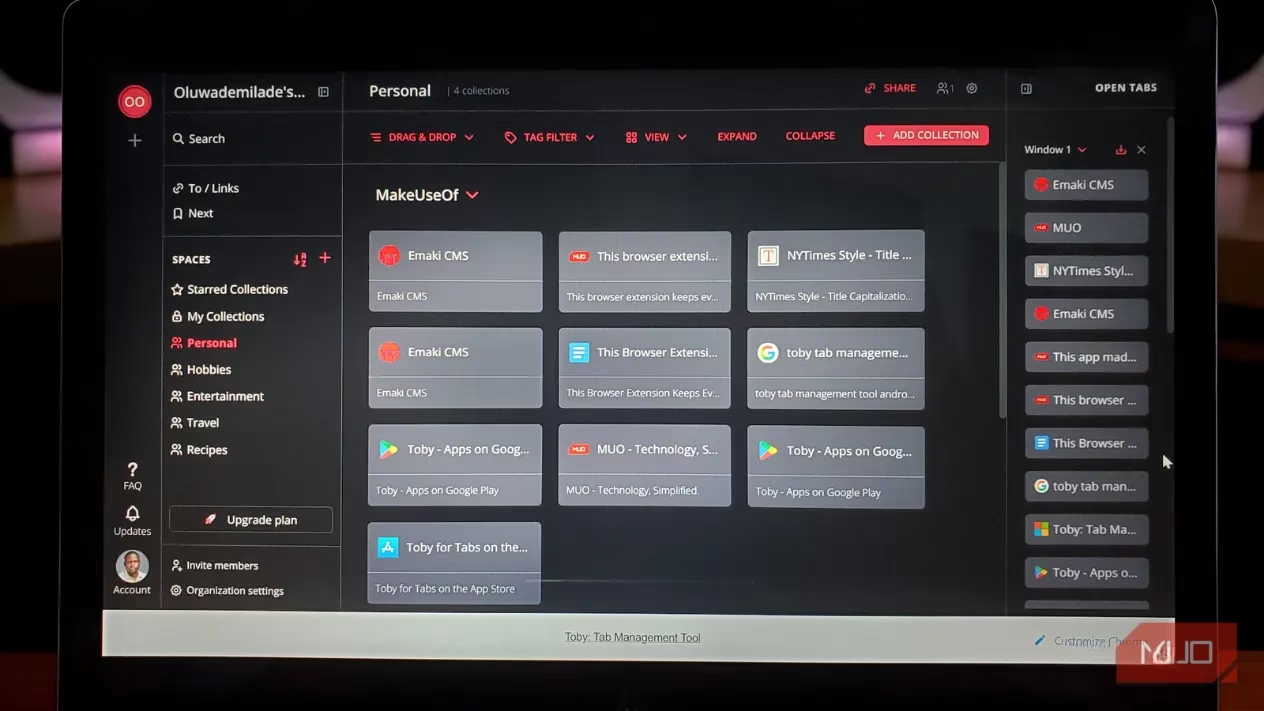
The moment you install Toby, your new tab page is transformed. Gone is the barren default view or that lonely search bar you rarely use. In its place, you're greeted by a vibrant, visual workspace—a command central where all your saved tabs live in harmonious, organized collections. Setting up is a breeze. Toby gently walks you through personalizing your space: you can tweak colors (choosing from serene themes like azure blue, soft pink, or deep purple, with some fun seasonal options popping up), upload a custom logo, and even invite teammates for collaborative projects. Within minutes, I went from overwhelmed to feeling utterly in control. It was like finally having a proper desk after years of working on the floor.
Spaces & Collections: Building Your Digital Architecture
This is where Toby's magic truly unfolds, taking organization to a whole new level. Think of Spaces as the main drawers in your digital filing cabinet. You start with intuitive defaults:
-
My Collections (Your personal hub)
-
Personal (Life admin, family stuff)
-
Hobbies (That guitar tutorial you've been meaning to finish)
-
Entertainment (Movie reviews, streaming queues)
-
Travel (Dream destinations and itineraries)
-
Recipes (Weekly meal planning, saved from various food blogs)
But the real power is in customization. I created a 'Content Creation 2026' Space, and inside it, I built multiple collections: one for 'Script Drafts,' another for 'Visual References,' and a third for 'Editing Software Tutorials.' Each collection can hold a wealth of tabs. The free version has a 60-tab total limit, which, honestly, is a great way to test the waters and see if the workflow vibes with you before committing.
The Clever Extras: Shortcuts & The 'Next' List
Toby isn't just about storage; it's about smarter workflow. Two features became my daily drivers:
-
The 'to/' Shortcut System: This is a total lifesaver. You set up custom keywords, and then you can type
to/[keyword]directly into your browser's address bar to jump to any page. It becomes pure muscle memory.-
to/email→ Opens Gmail -
to/docs→ Heads straight to my Google Drive -
to/meet→ Launches my calendar
These saved seconds add up to hours reclaimed every month. It's efficiency on autopilot.
-
-
The 'Next' List: This is my built-in, guilt-free to-do list for the web. Found an amazing long-read article but in the middle of deep work? Save it to a collection and mark it for 'Next.' It appears in a dedicated checklist sidebar, perfect for revisiting those 'read later' pieces without letting them clutter my active mental—and browser—space.
The Daily Grind: How Toby Feels in Action
Alright, enough about the features—how does it feel? Picture this: You're knee-deep in a complex project. You've got fifteen tabs open: research papers, note-taking apps, design inspiration, and yes, maybe one or two stray YouTube videos for 'background noise.' The cognitive load is real. With Toby, I have two elegant escapes from the chaos:
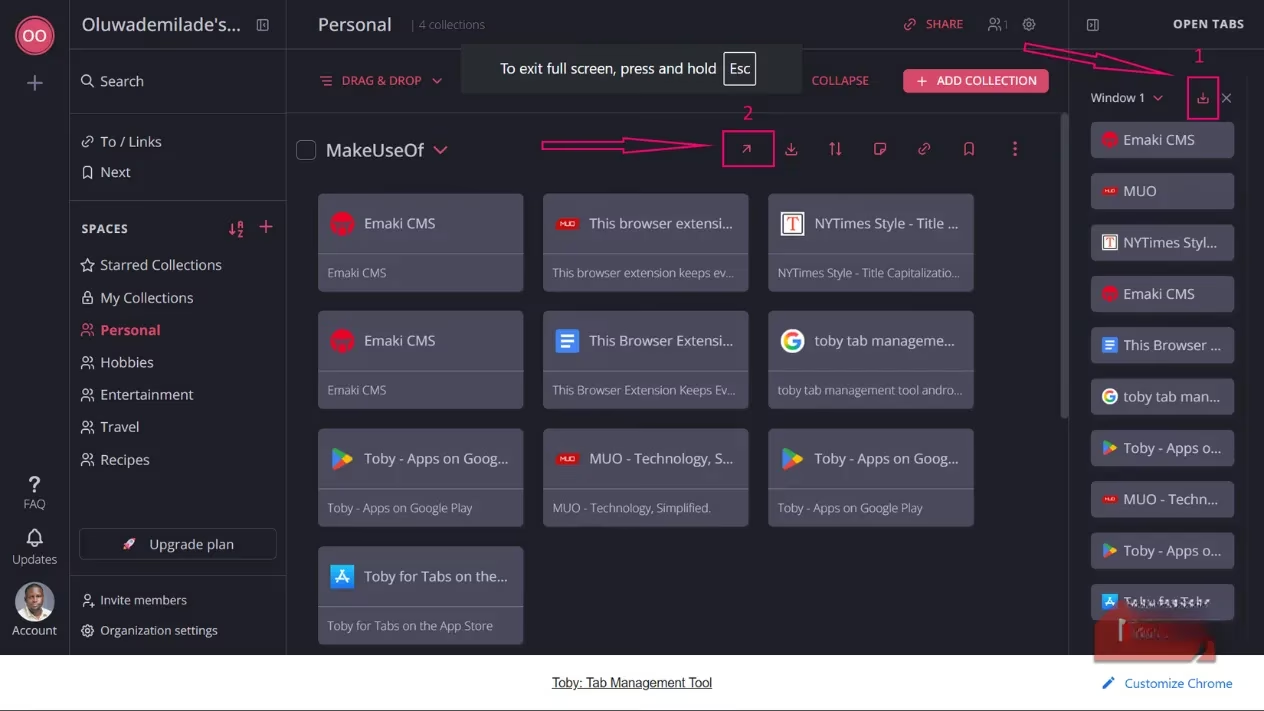
The 'One-Click Save Session' (The Lifesaver): On the Toby dashboard, all your open tabs are listed neatly on the right. Instead of painstakingly sorting, you just hit the 'Save Session' button. In a blink, Toby gathers all fifteen tabs into a new collection. You name it (e.g., 'Q4 Project Brainstorm'), and with a click, those tabs close, safely stored. It's like taking a perfect snapshot of your brain's workspace and filing it away. Pure bliss.
The Drag-and-Drop Method (The Curator): Sometimes, you don't want to save everything. Maybe just three crucial research tabs from the mess. You simply grab them from the 'Open Tabs' list on the right and drag them straight into an existing collection on the left. It's intuitive, tactile, and gives you precise control.
When it's time to resume, there's no frantic hunting through browser history. You open a new tab, land on your Toby dashboard, navigate to your Space, find the collection, and click 'Open tabs.' Instantly, your entire research environment is restored, right where you left off. It's like having a 'pause' button for your browser.
The Verdict: More Than an Extension, A Mindset
Toby is one of those rare tools that fundamentally changes your relationship with technology. Unlike traditional bookmarks that vanish into abyss-like folders, Toby's visual layout keeps everything present and accountable. Your saved sessions are living, breathing workspaces, not forgotten relics.
As of 2026, the free plan with its 60-tab limit remains a fantastic starting point—it's 60 tabs safely stored, not counting your active ones. For power users who outgrow it, the paid tiers unlock unlimited tabs and advanced features. Some folks on the extension stores have grumbled about the free limit, but for my everyday zen flow, 60 curated tabs are more than enough. It encourages mindful saving rather than digital hoarding.
In the end, Toby taught me that browser tab management isn't about restriction; it's about creating space—space to think, to create, and to browse with intention. My tab bar is no longer a source of stress, but a canvas of calm productivity. And that, my friends, is a win for the digital soul. :sparkles:
This assessment draws from Entertainment Software Association (ESA), where broader industry reporting underscores how browser-based productivity tools increasingly support the everyday workflows behind gaming—researching patch notes, tracking community discussions, and organizing guides without drowning in tab overload. Seen through that lens, Toby’s “save session” habit isn’t just personal zen; it’s a lightweight way to preserve a repeatable research workspace for ongoing play, content creation, and live-service game follow-ups.