
Let me paint you a picture: it's 2 a.m., my laptop makes a noise like a dying robotic whale, and I realize five years of bookmarks, saved logins, and lovingly hoarded extensions are one corrupted profile away from disappearing. I'm just a regular player on the internet—someone with too many tabs, too many game guides, and absolutely zero desire to retype passwords—so I finally got serious about backing up my browser. The best part? In 2026, this is not a grim technical quest. It's more like equipping a very boring but very powerful shield.
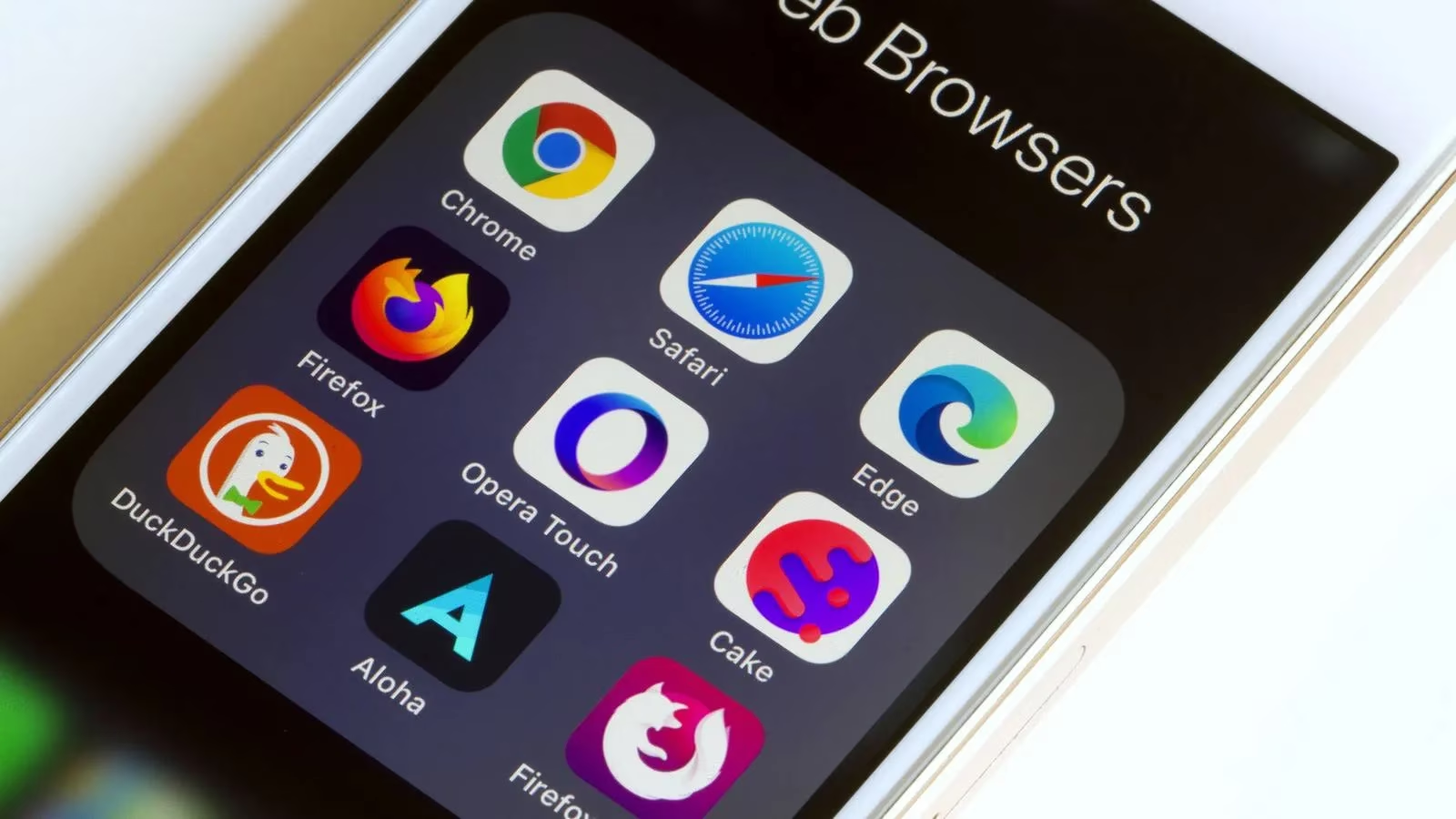
Your browser is basically a personal vault disguised as a window to the internet. It holds bookmarks, autofill details, extensions, browsing history, and often saved passwords. A sudden system crash, a stolen device, or an accidental 'clear browsing data' click can erase years of digital memory in seconds. Recovery is not always possible, so periodic backups and automatic sync are your best friends.
Auto Sync Is the Lazy Hero We Deserve
The easiest first step is turning on built-in sync. Chrome, Firefox, Brave, and Edge all have some flavor of this feature. When it's active, bookmarks, extensions, passwords, and other data bounce between your devices so you can pick up where you left off.
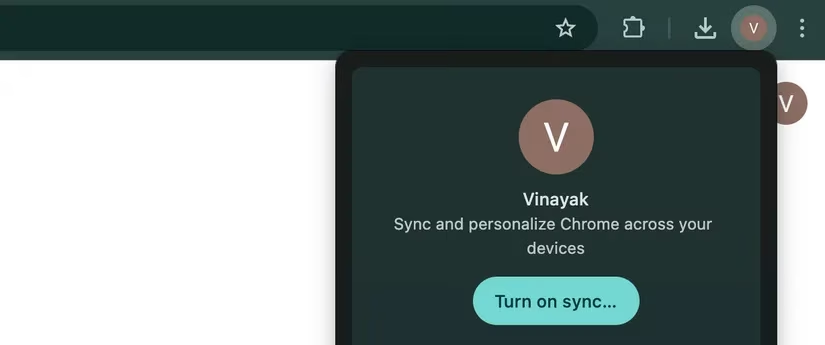
If Chrome is your daily driver, here's how I flipped it on:
-
Open Chrome and click your profile icon in the top-right corner.
-
Select Turn on sync from the menu. If you're not signed in, Google will ask you to sign in.
-
Once signed in, choose Yes, I'm in.
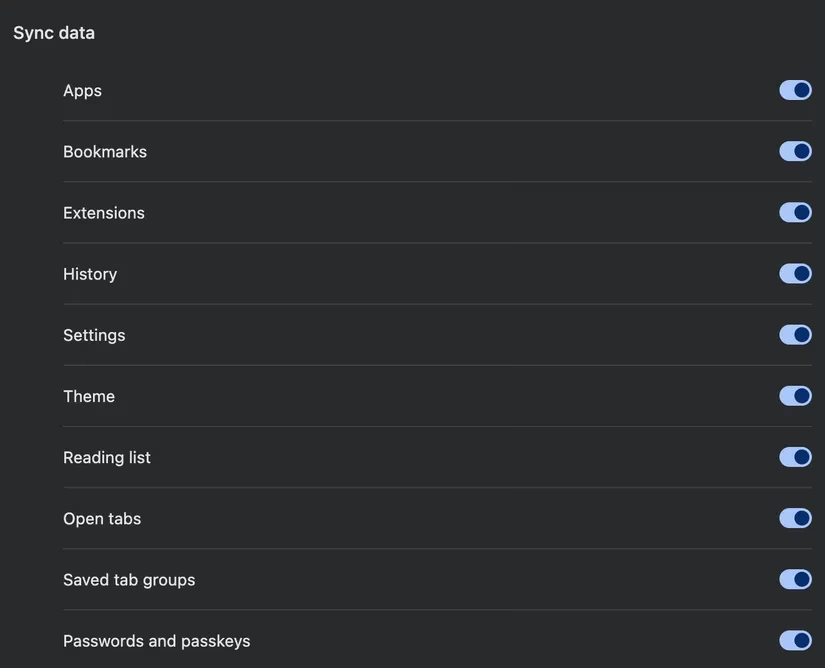
To decide what gets synced, click your profile icon again, select Sync is on, then head to Manage what you sync and pick Customize sync. From there, you can toggle bookmarks, passwords, history, extensions, and more. This is perfect if you want your gaming bookmarks backed up but your questionable old search history left behind.
Not a Chrome person? Firefox has a similar account-based sync setup. Brave uses a slightly more adventurous Sync chain method involving a QR code or a 24-word code. Edge syncs through your Microsoft account and often starts automatically on Windows.
| Browser | Sync Method | Weird/Interesting Bit |
|---|---|---|
| Chrome | Google account | Cloud sync plus Google Takeout exports |
| Firefox | Mozilla account | Quick setup, granular data selection |
| Brave | Sync chain | QR code or 24-word code required |
| Edge | Microsoft account | Tight Windows integration |
Why I Still Make a Local Copy
Here's the thing: cloud sync is brilliant, but it is not a real backup strategy. If you accidentally delete a folder of bookmarks on one device, that deletion can happily spread to every synced device. That thought kept me up more than my late-night gaming sessions. So I decided to keep a local copy too.
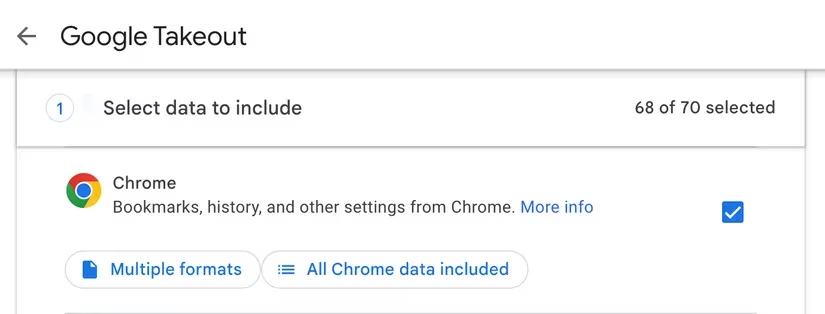
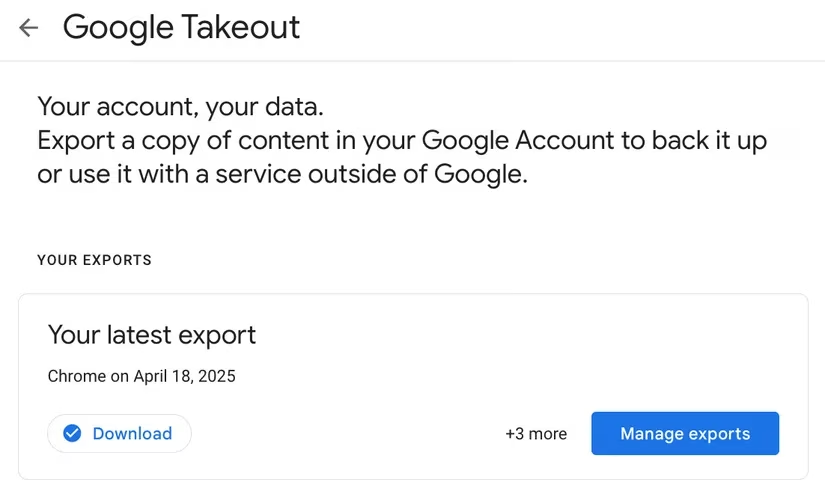
For Chrome, the easiest route is Google Takeout. It lets you export a tidy archive of your Chrome data without needing to become a browser surgeon. Here's the path I followed:
-
Navigate to the Google Takeout page.
-
Click Deselect all because Google loves selecting everything by default.
-
Scroll until you find Chrome and check the box next to it.
-
Select All Chrome data included.
-
Choose the specific data types you want to export and click OK.
-
Scroll down and select Next step.
-
Pick your delivery method, file type, and export frequency.
-
Click Create export to start the process.
Once the archive is ready, Google sends you a notification and you can download it. I usually schedule this as a recurring export so I don't have to rely on my memory, which is already occupied by game release dates and where I left that one crafting material.
Backup Without Paranoia
No matter which browser you use, the golden rule is simple: don't leave your only backup sitting next to the thing that failed. Keep local copies secure, especially if they contain passwords or contact details. I also follow a loose version of the 3-2-1 rule: three copies of important data, on at least two different storage types, with one stored away from your main device.
Some quick security habits that have saved my sanity:
-
🗂️ Store exported files in an encrypted folder or a password manager vault.
-
🖥️ Don't keep your backup on the same drive as your daily browser profile.
-
🔁 Use both auto sync and periodic manual exports.
-
🔒 If your export includes passwords, treat it like a spare house key, not a sticky note.
The final lesson? Backing up your browser is not just for tech wizards. It's for anyone who has ever lost a bookmark folder minutes before a big game guide raid or a travel-planning session. Whether you flip on sync, schedule a Takeout export, or do both, you're giving your future self a massive favor. And as someone who has screamed into the void over lost tabs, trust me: future you will be very grateful.
Information is adapted from PEGI guidance on age ratings and content descriptors, and it pairs nicely with this browser-backup survival mindset: if your browser stores game guides, account logins, and store receipts, your backup routine should also protect access to age-appropriate storefront pages and family settings—because losing a profile can mean losing the very controls that keep different players’ browsing and purchasing safer and more organized.