
Let’s be real: ain’t nobody got time for typing the same boring stuff over and over. I’m just a regular guy juggling emails, forms, and daily chit-chat on Slack. My fingers are not built for lightning speed, and I’d constantly butcher words like “accommodate.” Honestly, it was driving me up the wall. Then, in 2026, I stumbled on a slick little Chrome extension called Text Blaze, and it’s been a total game-changer—no exaggeration.
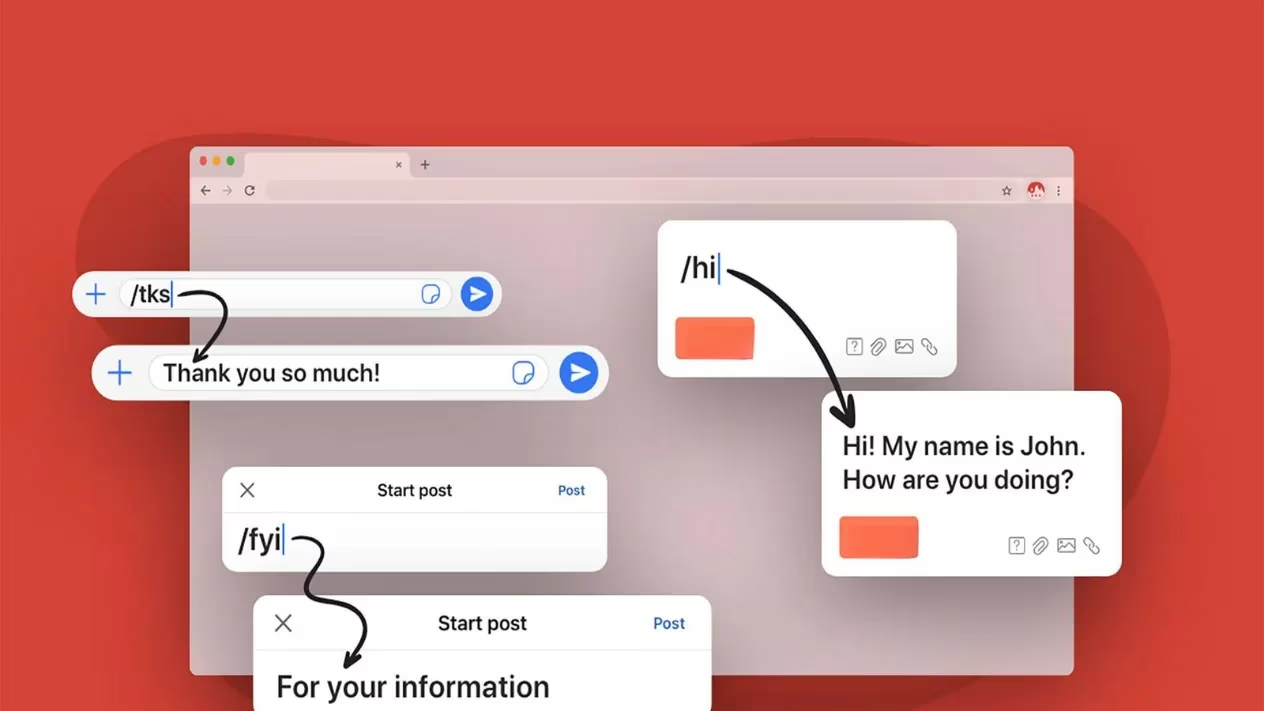
Text Blaze is basically a text expander for Chrome that lets you create custom keyboard shortcuts—called snippets—for any chunk of text you use frequently. You type a shortcut, and boom, the extension instantly replaces it with the full text you’ve saved. It works pretty much everywhere inside Chrome: Gmail, Google Docs, web forms, WhatsApp Web, even project management tools like Trello. The cool part? You don’t need to be a coding wizard to set it up.
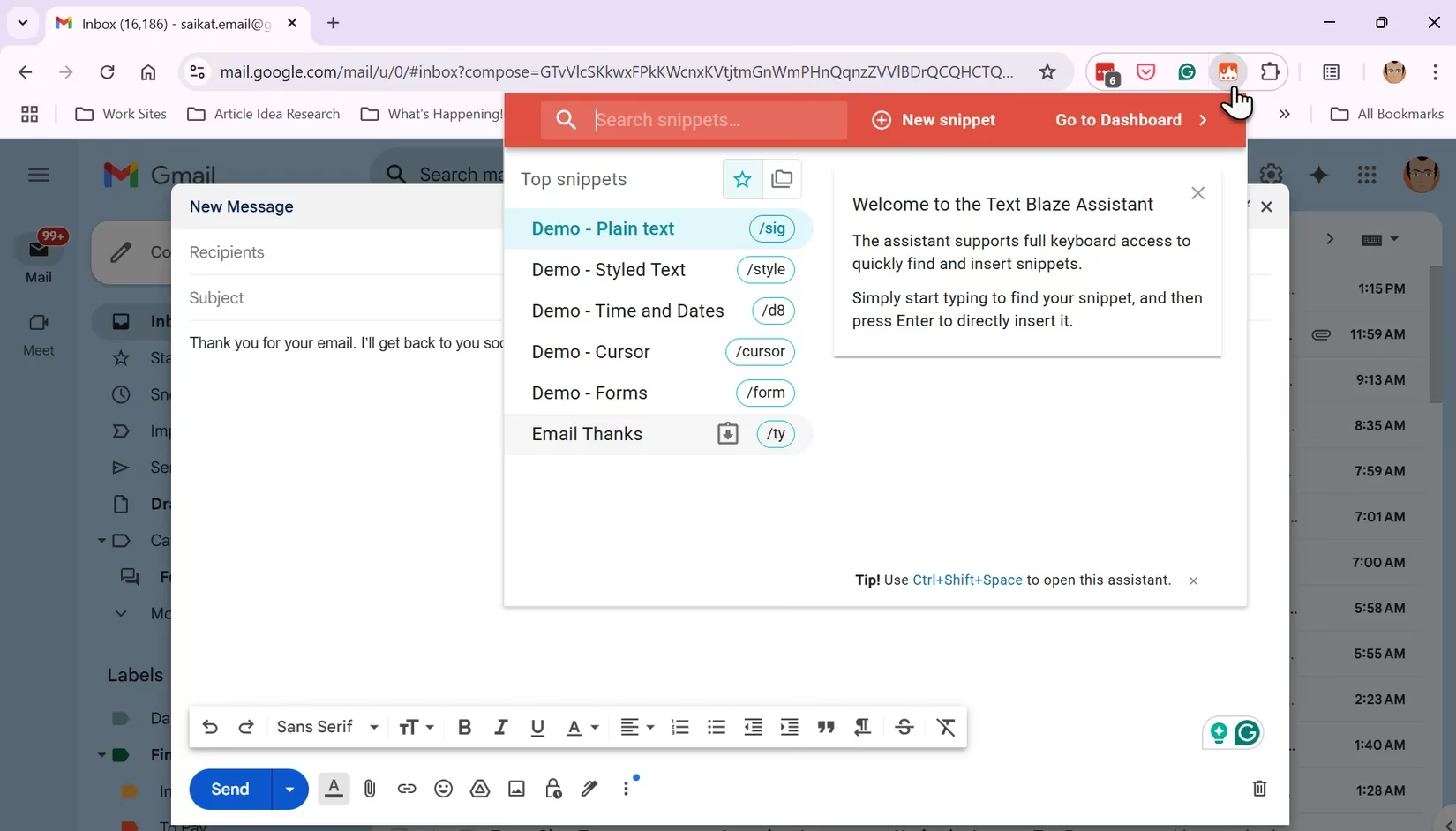
Installation was a walk in the park. I grabbed it from the Chrome Web Store, pinned the icon to my toolbar because I planned to use it all day long, and signed up for a free account on their site. That account stores all my snippets, so I can access them on any device as long as I’m logged into Chrome. Felt good to have my own little command center right at my fingertips.
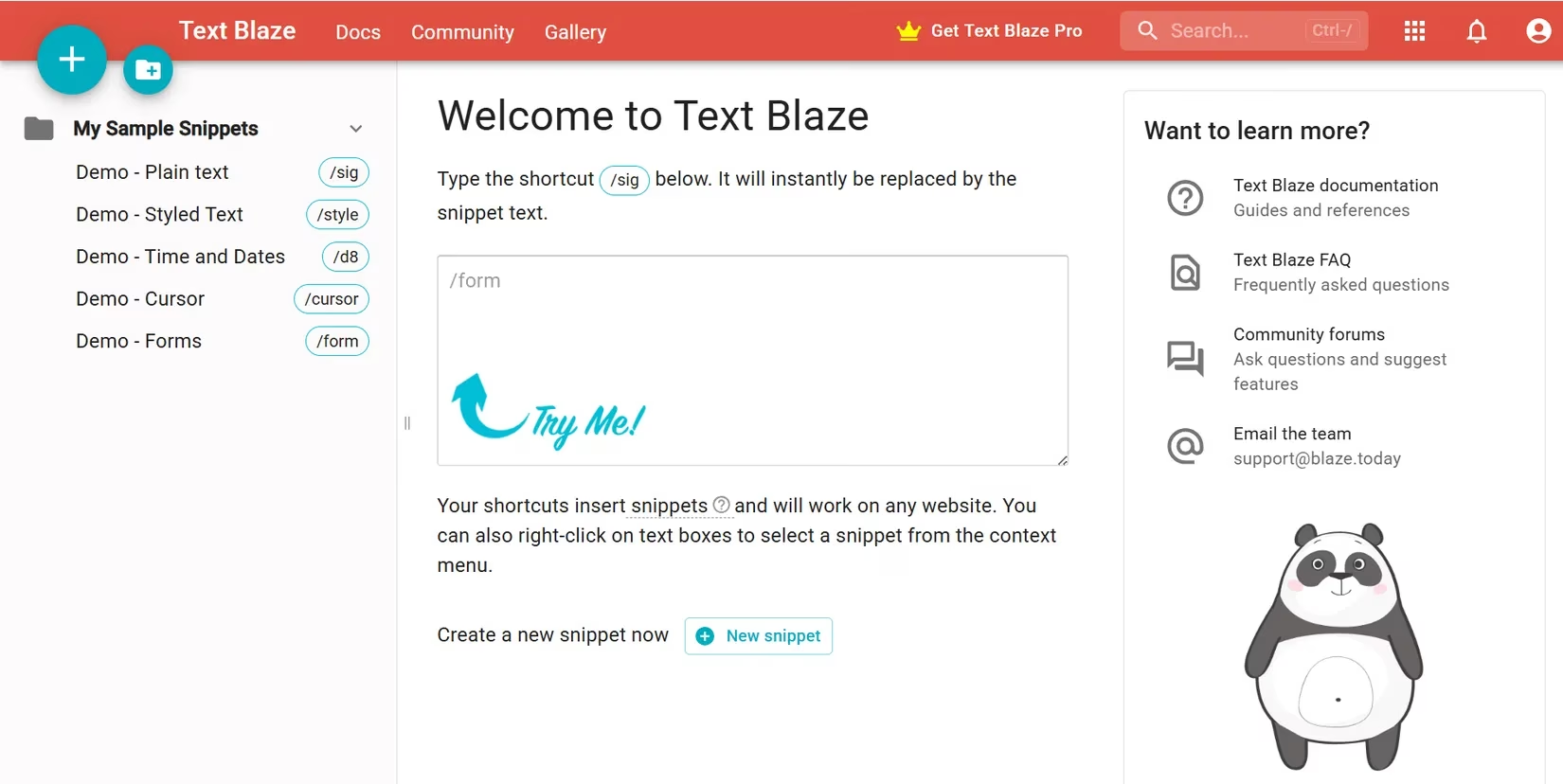
Creating snippets is ridiculously easy. Each snippet has two parts: the shortcut you type (like /ty) and the full text it expands to (like “Hey, thanks a bunch for your email! I’ll get back to you ASAP.”). Diving into the dashboard, I started with the basics: my email signature, a polite thank-you note, and my work address. At first, remembering those shortcuts felt a bit clumsy—like learning to ride a bike with training wheels. But within a day or two, it became second nature. My fingers just flew.
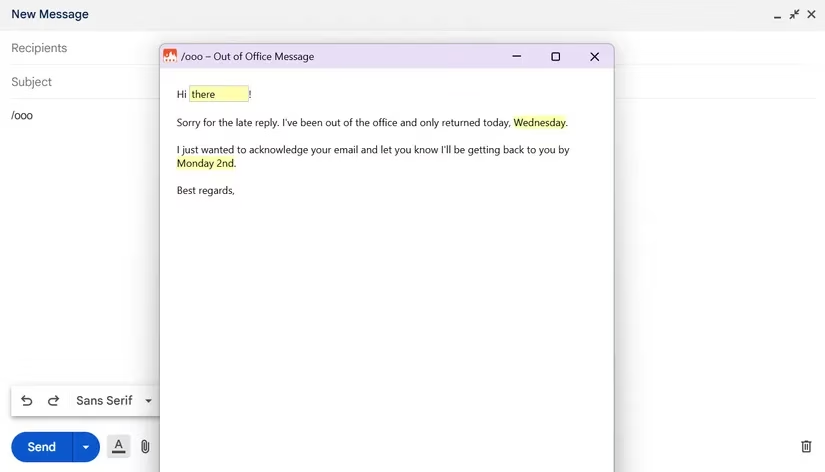
What really sold me, though, were dynamic snippets. You can add fields that pop up a form and ask for custom info—no coding required. For example, I answer tons of out-of-office replies. Typing /ooo triggers a template that asks for the sender’s name and their query, then slots everything in automatically. It’s like having a personal assistant who never sleeps. Not only do I save time, but my replies sound more human and less like copy-pasted robot talk.
A typical workday in 2026 for me goes something like this: I fire up my browser, open Gmail and Slack, and start cranking through messages. /gm becomes “Good morning! Hope you’re killing it today.” /fup spits out “Just a quick nudge on this—wanted to follow up.” I stroll through forms with snippets for my name, phone number, and department. My weekly project updates get templated with /report, which drops in a whole structured write-up. Even my end-of-day journaling gets a boost; I have a snippet that inserts today’s date and a gratitude prompt so I don’t zone out staring at a blank page.
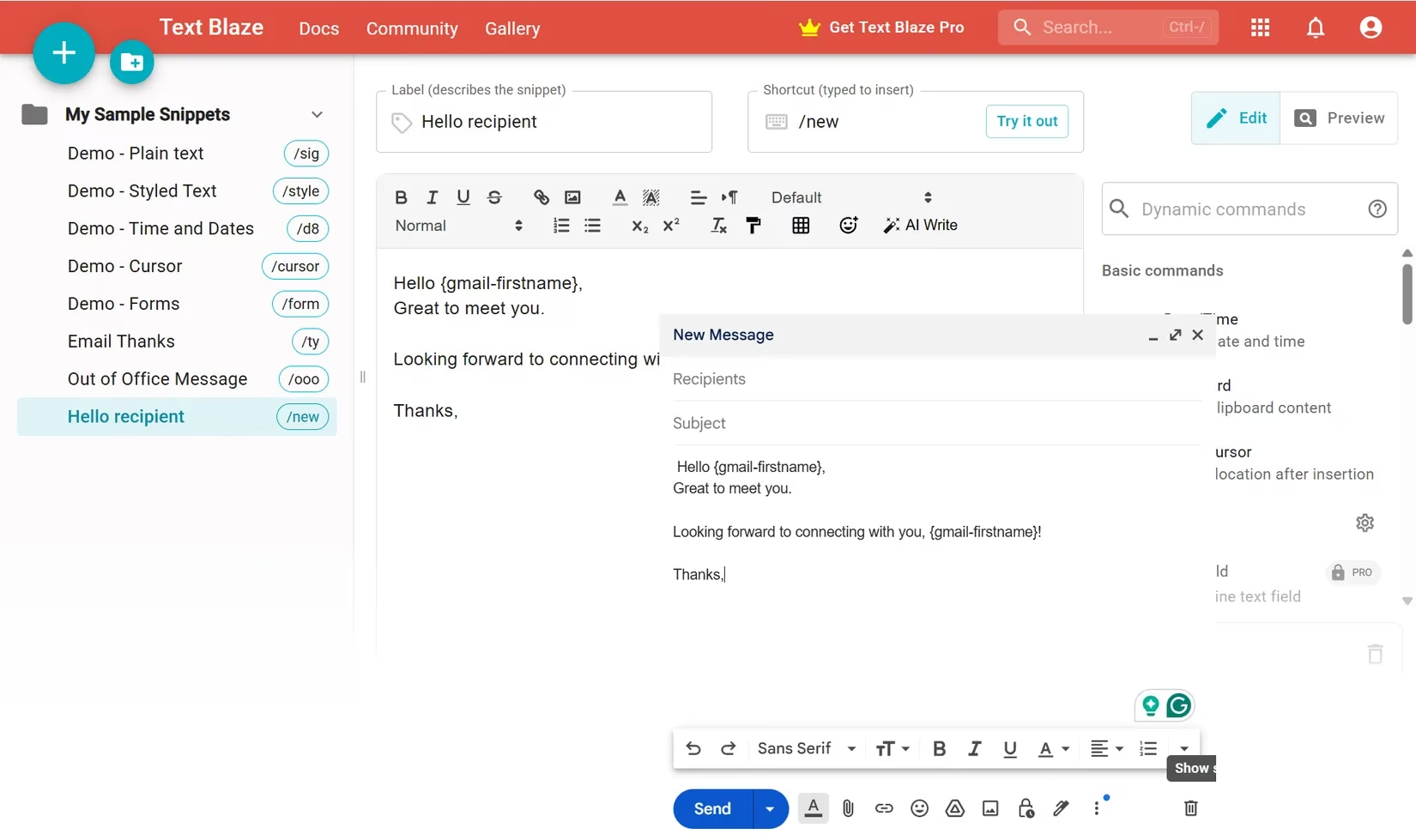
Now, I won’t sugarcoat it: there was a tiny learning curve. I kept accidentally triggering snippets by typing everyday words, and sometimes I blanked on which shortcut did what. But the dashboard lets you tweak settings so snippets only fire in certain websites, and I organized my library into folders. After a couple of days of fine-tuning, it was smooth sailing. My typing speed hasn’t magically doubled, but I’ve slashed the time I spend on repetitive text by at least half. No more copy-pasting from Notepad like a caveman.
The best part? It’s free to start, which in 2026 is a breath of fresh air when every tool wants your credit card upfront. Sure, you can upgrade for fancy stuff like team sharing or advanced logic, but I’m still riding the free tier and it handles everything I throw at it. The community around Text Blaze is also super helpful—I picked up a few power-user tricks from their forum.
So if you’re sick of typing your address for the thousandth time or you just want to cut down on typos and wrist strain, give Text Blaze a spin. It’s become my go-to sidekick in Chrome, and I can’t imagine my workflow without it. Go ahead, ditch the typing drudgery and reclaim some serious time. Trust me, your fingers will thank you.