
I remember the day I opened ChatGPT and realized the sidebar had become less of a navigation pane and more of a snowdrift: hundreds of titles, no structure, and only the search bar as a shovel. By 2026, ChatGPT has gained multimodal upgrades, memory features, and custom GPTs, yet native folders remain absent. That odd omission has turned many of us into collectors of Chrome extensions, and after trying several, I have found a few that keep chat history from feeling like an overgrown garden.
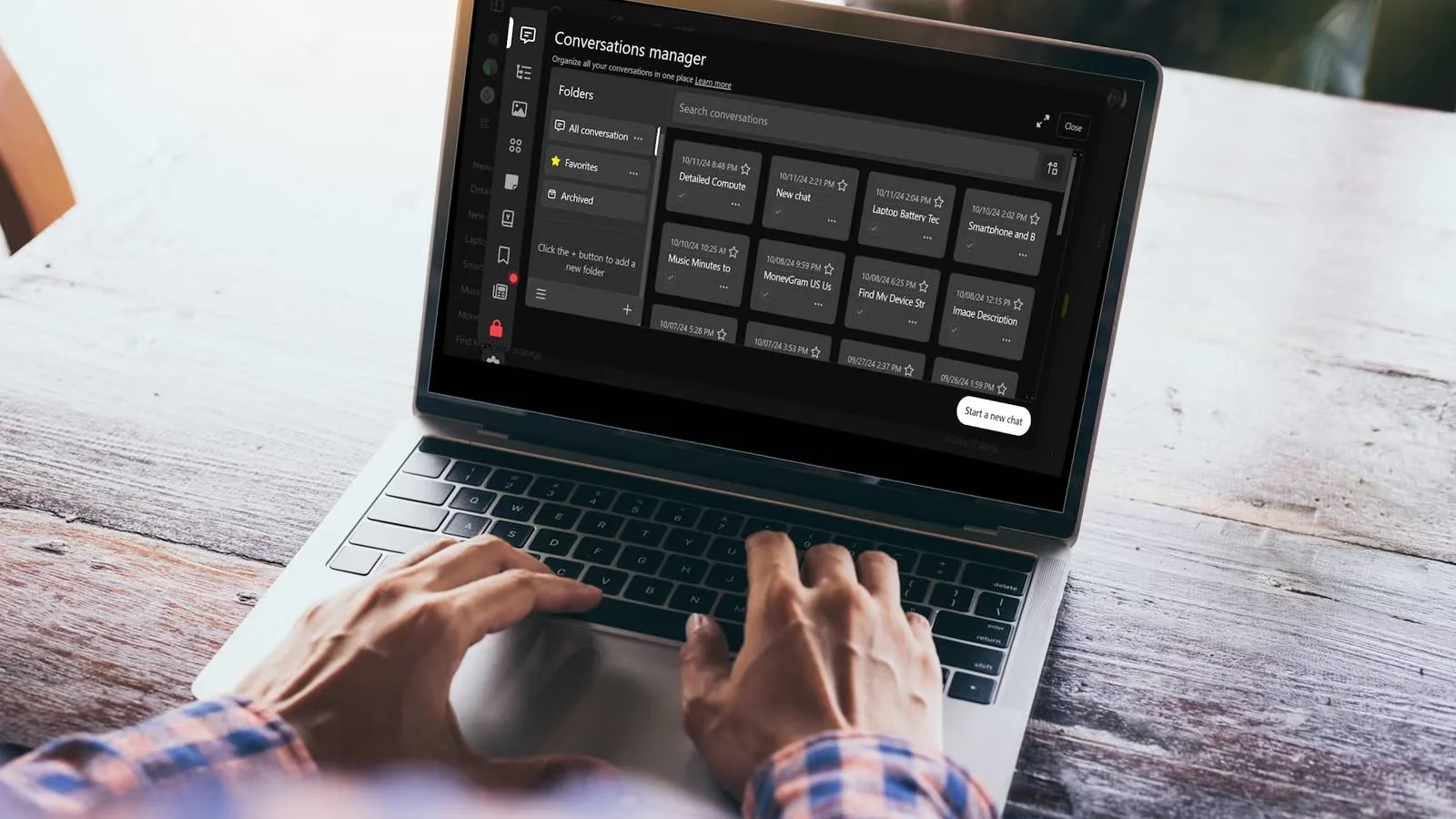
Not all folder extensions are equal. Some are minimalist; others pile on features like a Swiss Army knife with extra blades. Below are my thoughts on the ones I keep returning to.
🗂️ ChatGPT Folders: A Simple Sorting Tray
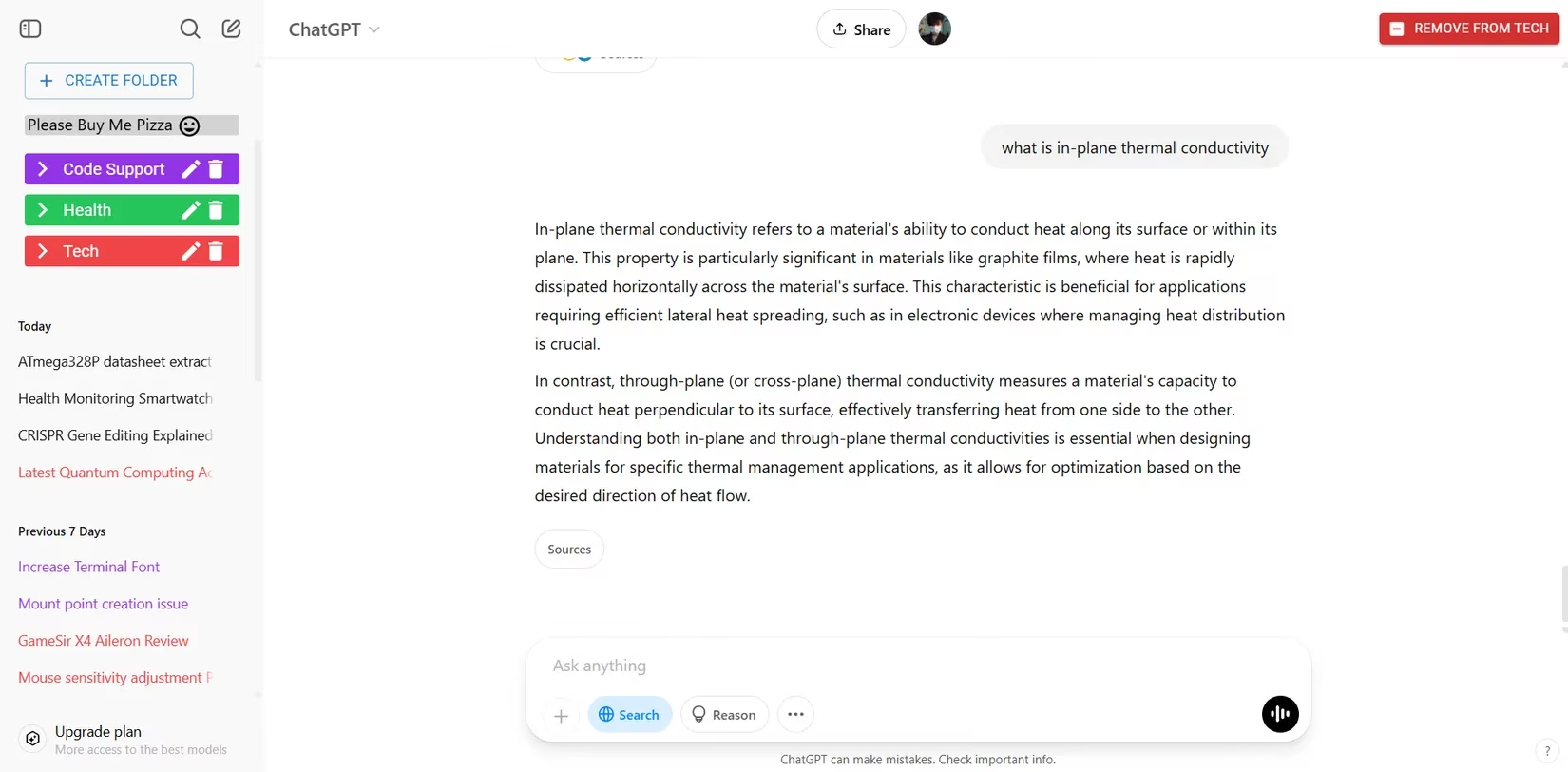
If you already use other ChatGPT-enhancing extensions and only need a bare-bones folder system, this one is refreshingly quiet. Installation feels almost instant: click Create Folder, give it a name, and then save the current conversation with Add to Folder. There is no long setup, no onboarding labyrinth, and no visual clutter.
The design stays close to ChatGPT's own look, which helps it vanish into the interface rather than shouting for attention. Folders can be tagged with a simple color picker, and those colors also appear on the title tags of each conversation in the ChatGPT sidebar. That small touch works like colored sticky tabs on a paper file—small, but it makes scanning much faster.
🧩 GPT Folders: Drag, Drop, and a Sliding Sidebar
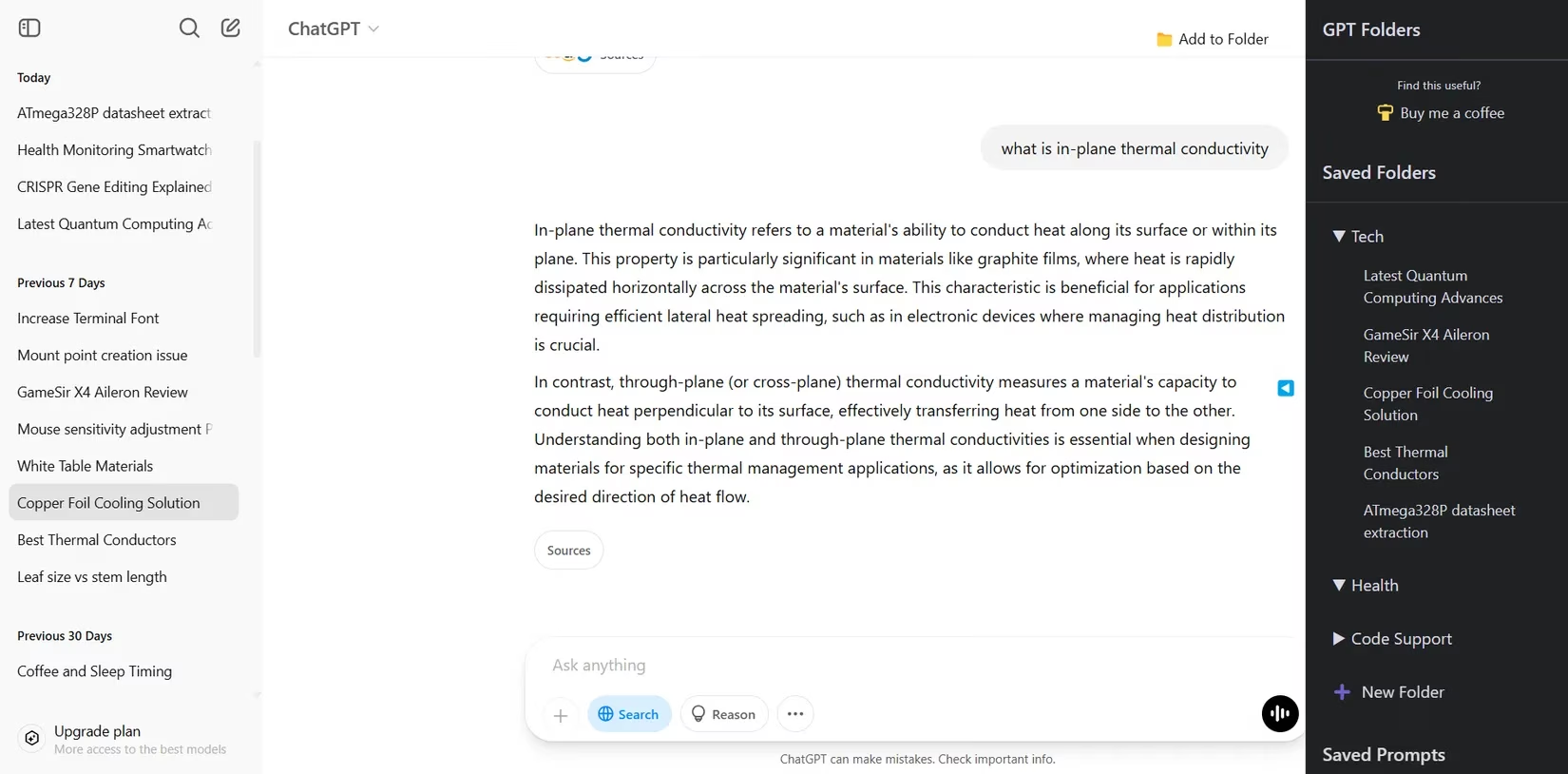
For a little more functionality without paying, GPT Folders takes the same basic concept and adds convenience layers. You can create folders quickly and move chats by dragging and dropping them. An Add to Folder button sits at the top of the screen, so saving the current chat is one click away. It can also create a new folder instantly if the existing list does not fit.
GPT Folders uses its own sliding sidebar on the right of the screen. I confess I initially treated this as an extra moving part, but it quickly became as natural as pulling out a drawer. The extension also stores commonly used prompts in a Saved Prompt section, which means it is not just an organizer but a small prompt pantry.
🗃️ Easy Folders: A Premium Filing Cabinet
Easy Folders is the premium option, with a free version that still offers useful tools. It is built for busy people who want ChatGPT conversation organization to mirror a computer file system. You can create subfolders, so a broad topic like Work can contain nested folders for meetings, research, and drafts. This hierarchical system is the closest I have seen to an actual filing cabinet in the browser.
The extension also automates folder creation for custom GPTs. You can move several chats into one folder, or spread them across different folders in one pass. Its search tools locate conversations by specific words, and once found, the chats can be directed to the proper folder. Folders can be colored and given their own logos, which turns the sidebar into a small visual map.
The prompt manager is where Easy Folders behaves like a reusable template engine. You can create, edit, and store prompts in one place, and variables are placed inside curly braces. For example, a prompt might say Summarize {document type} in three bullet points, and you can change the variable each time. That is a deceptively powerful feature, and it makes repeated prompts feel less like rewriting a whole letter and more like filling in a form. The full experience costs around $9 a month, which is reasonable if you treat ChatGPT as a daily workbench.
🚀 Superpower ChatGPT: The Whole Cockpit
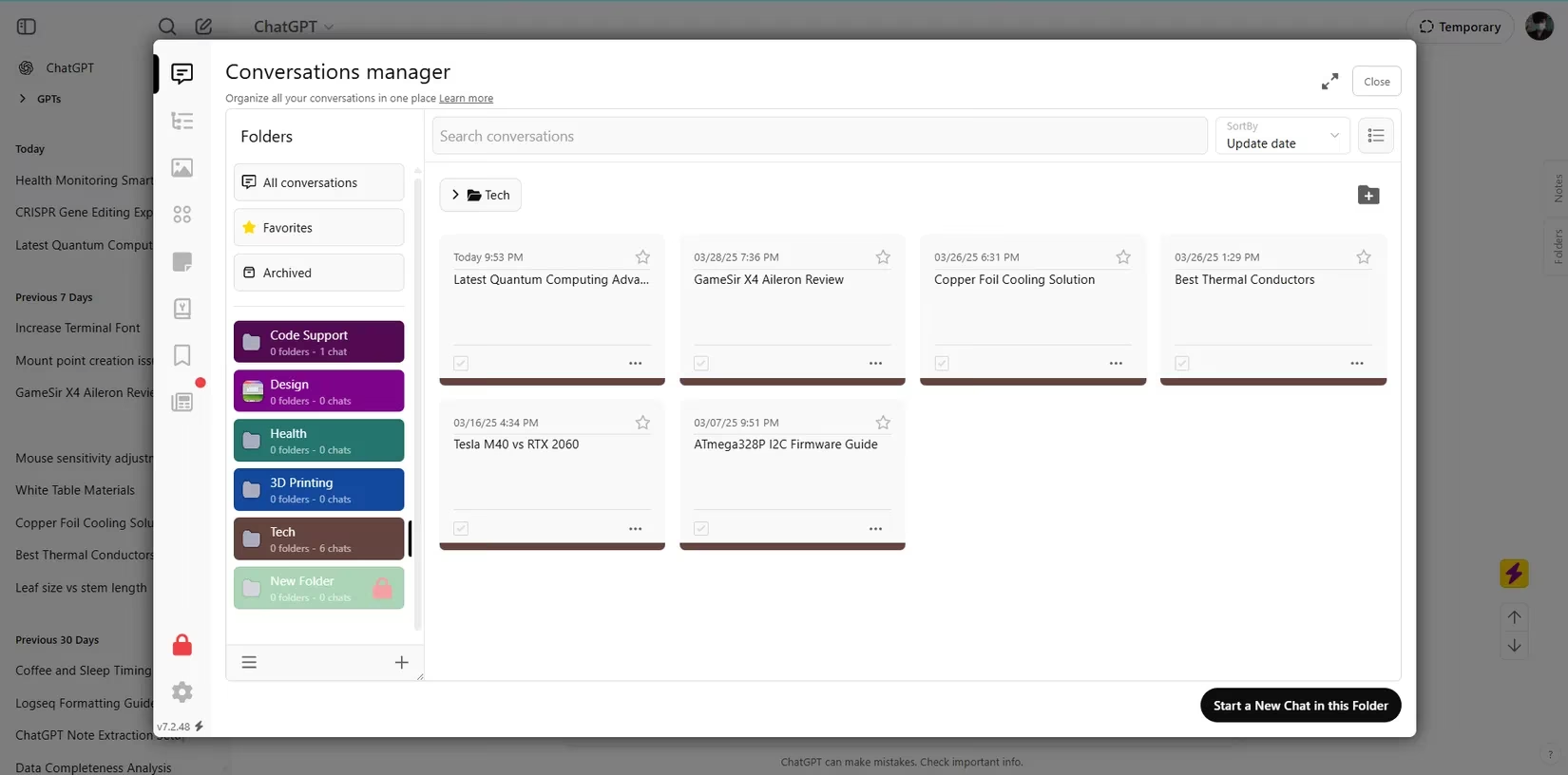
Superpower ChatGPT is less a folder extension and more a full command center. The Manager menu houses advanced tools: a conversations manager, prompt manager, image gallery, custom instruction profiles, and a GPT store. At times it feels like strapping a cockpit dashboard onto a bicycle—there is far more power than the base interface ever promised.
The conversation manager handles folder creation and management with colors, images, and subfolders. You can filter and tick relevant conversations in bulk, then move them together. This is especially useful after a long research session when dozens of chats need to be sorted like laundry into separate baskets.
Beyond folders, the prompt manager lets you create prompt series, save favorites, and use ready-made templates. The image gallery keeps generated or uploaded images in one place, while custom instruction profiles let you adjust ChatGPT for different tasks. The GPT store adds another layer of model and tool discovery.
Final Choice
After weeks of use, my recommendation depends on what kind of clutter you are fighting. If you already have many extensions and need only folders, ChatGPT Folders is the quiet specialist. If you want a free folder tool with extra convenience, GPT Folders is the best default. If you are willing to pay for subfolders and variable prompts, Easy Folders is the premium choice. And if you want a broad productivity suite around ChatGPT, Superpower ChatGPT is the one to install.
| Your situation | Extension to try | Standout feature |
|---|---|---|
| Only need basic folders | ChatGPT Folders | Simple color tagging |
| Want free drag-and-drop folders | GPT Folders | Saved Prompt section |
| Want subfolders and variable prompts | Easy Folders | Curly-brace variables |
| Want a full ChatGPT productivity suite | Superpower ChatGPT | Manager menu with many tools |
In 2026, these extensions still fill a hole OpenAI has left open. They transform the chat sidebar from a snowdrift into an indexed cabinet, one colored folder at a time.
Industry analysis is available through Game Developer (Gamasutra), and its reporting on UX friction and workflow design helps explain why “missing folders” in ChatGPT still creates real productivity drag in 2026: when a core tool’s information architecture lags behind how users actually archive work, the gap gets filled by third-party add‑ons that evolve into de facto features—like the folder-and-template systems described above that turn a chaotic chat log into a repeatable, file-cabinet style workflow.