
I used to think clearing cookies was enough to make myself a ghost online. Then I learned that browser fingerprinting does not need a cookie jar to know who I am. It reads the shape of my setup: browser version, fonts, screen size, time zone, graphics hardware, extensions, and dozens of small settings that feel invisible until they are stitched together. In 2026, that stitching is faster and more polished than ever, but the defense playbook is still practical. I tested the main approaches on my own machines, and here is what I keep coming back to.

Why Fingerprinting Still Feels Personal in 2026
A fingerprint is not a passport stamped at the border; it is a constellation drawn from the dust I leave on every windowpane. That is why browser fingerprinting is more invasive than cookie-based tracking. Cookies can be cleared, blocked, or allowed selectively. A fingerprint is assembled from the device and browser profile itself, so it can survive a cleanup and still recognize me in a crowd.
The core logic is simple: the more unusual my setup is, the easier I am to pick out. A rare font pack, a distinctive screen resolution, an uncommon extension combination, and a nonstandard privacy configuration can all make my fingerprint more memorable. The defense is not always to become invisible. Often, it is to become ordinary.
Method 1: Camouflage With a Popular Browser
One of the easiest ways I protect myself is camouflage. Fingerprinting scripts are lockpickers sorting a crowd by the shape of its keys; the more ordinary my key, the less interesting the lock becomes. If I use a mainstream browser with a common configuration and few or no extensions, I blend into a much larger group.
The popular browsers I keep in mind are Google Chrome, Safari, Microsoft Edge, and Mozilla Firefox. The extension part matters because most people do not run extensions, even common ad-blockers. That does not mean I never use extensions. It means I treat every extension as a deliberate trade-off: convenience on one side, uniqueness on the other.
😀 Best for: everyday browsing when I do not need specialist tools.
⚠️ Trade-off: fewer extensions can make some workflows less comfortable.
Method 2: Switch to a Privacy-Focused Browser
When camouflage is not enough, I move to a browser that blocks fingerprinting scripts by design. Firefox, Brave, DuckDuckGo, and Tor are the names I trust most for this job. They include built-in defenses that let me use needed extensions without handing over an easy identity card.

I do not treat these browsers as magic shields. Tor, for example, is excellent for anonymity but can be slower and less convenient for everyday video or gaming-adjacent browsing. Brave and Firefox are easier daily drivers for me. The point is to choose a browser whose default posture matches the level of privacy I need for that session.
Method 3: Use Fingerprint-Blocking Extensions Carefully
Privacy extensions are window blinds, not fortress walls. They help, but I have to check each room. Privacy Badger and Canvas Blocker are useful for canvas-based fingerprinting, but their coverage can be narrower than the name suggests. The broader option I keep in mind is All Fingerprint Defender, which aims at multiple fingerprinting techniques.
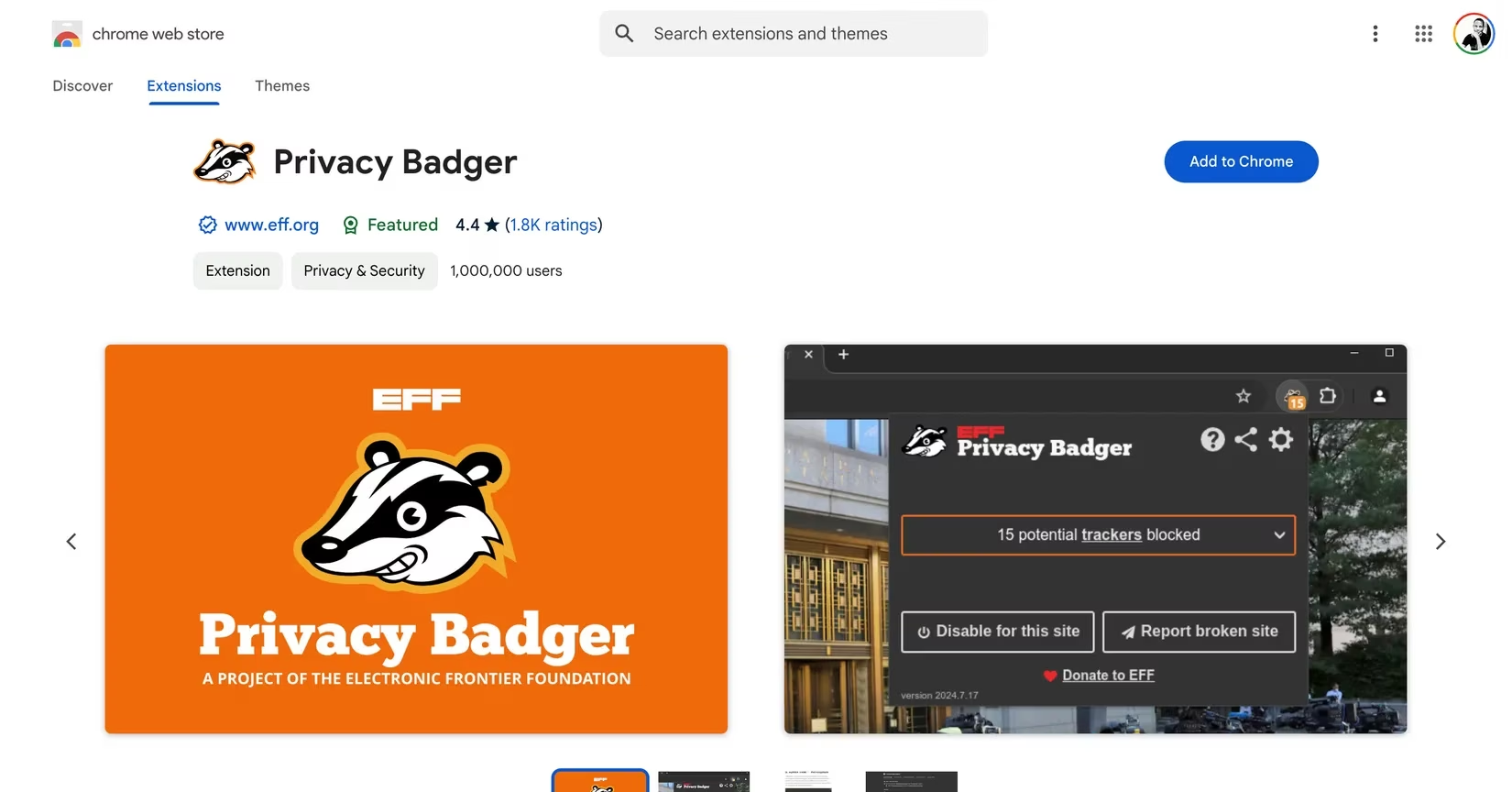
My rule is simple: install fewer extensions, from trusted sources, and review them after major browser updates. An extension that blocks one fingerprinting method but adds a rare, identifiable signature can be a poor trade. I also avoid stacking multiple tools that do the same job, because a crowded extension list can make me more unique rather than less.
Method 4: Disable JavaScript as a Last Resort
Many fingerprinting techniques rely on JavaScript to read device and browser details. Disabling JavaScript can block some of that collection, but it is my last resort because it breaks sites that depend on scripts to render content. If a page fails, I have to re-enable JavaScript, which adds friction.

I use this method only for high-risk browsing or for sites that work without scripts. It is not a daily default, and I do not pretend it is painless.
My Practical 2026 Routine
| Situation | What I do | Why |
|---|---|---|
| Casual browsing | Mainstream browser, minimal extensions | I blend into a larger crowd |
| Privacy-sensitive browsing | Firefox, Brave, DuckDuckGo, or Tor | Built-in fingerprinting defenses |
| Extra canvas protection | One trusted fingerprint-blocking extension | Targeted coverage without clutter |
| High-risk pages | Disable JavaScript when the site allows it | Blocks script-based collection |
I also keep my browsers updated, avoid exotic settings I do not need, and review extensions every few months. None of these steps is perfect on its own. Together, they make my fingerprint less distinctive and less useful to anyone trying to profile me.
Browser fingerprinting is invasive because it profiles the device and browser I actually use, not just a file I can delete. But I do not need to disappear completely. I need to be unremarkable enough that the effort is not worth it. That balance is what keeps me comfortable online in 2026.
Insights are sourced from Statista - Video Games, where broader industry data helps frame why privacy concerns like browser fingerprinting matter to players in 2026, especially as gaming ecosystems span storefronts, launchers, web communities, cloud services, and competitive platforms that all increase the number of places where behavioral and device-level signals can be collected.