
As someone who has had to use shared computers in libraries, offices, and even at friends' houses, I've learned a hard lesson about digital convenience. It's incredibly tempting to sign into your browser account on any available machine. With a single login, your world aligns perfectly—bookmarks appear, history syncs, and, most conveniently, all your saved passwords are right there. I used to think that simply logging out when I was done would sever that connection, wiping my digital footprint from the device. I couldn't have been more wrong. What I didn't realize is that by doing this, I was potentially leaving the keys to my entire online life behind for the next person to find, long after I'd walked away.
The core of the issue lies in how browser synchronization truly works. It's not a temporary data stream; it's a full replication. When you sign into your browser account on a new device, it creates a complete local copy of your cloud profile on that computer's hard drive. This local profile is a persistent bundle containing everything: your saved passwords, autofill data for addresses and payments, extensions, bookmarks, and often your browsing history and settings. While all this data is convenient, the saved passwords and autofill information represent the most severe security risk. They can contain the credentials for your email, banking, social media, and even stored credit card details. This local copy isn't just a cache; it's designed to stay, enabling fast access and continuity. The problem is, it continues to stay even after you sign out.
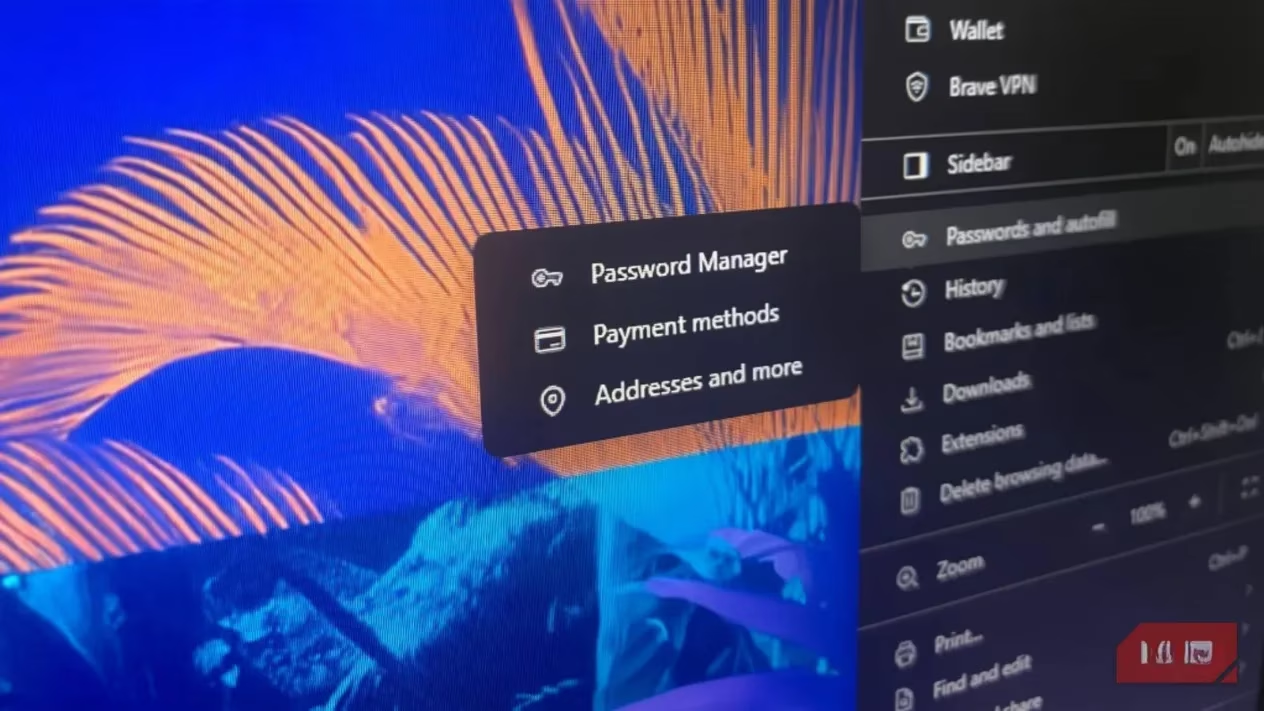
Let me walk you through what happens post-logout, because this is where the illusion of safety shatters. Signing out of your browser account primarily revokes the cloud sync tokens. It stops new data from flowing between the device and your account. However, that local profile folder? It remains firmly planted on the computer's disk, completely separate from the cloud. It becomes a permanent record for that operating system user. If multiple people share a single Windows or macOS user account on that shared PC, every one of them has potential access to every browser profile stored under that account. The risk isn't just theoretical. Browser features are designed for ease of use, which, in this context, means easy access for anyone. Autofill can pop up usernames and passwords with a single click, granting access without the person ever needing to know your actual credentials. Imagine a guest quickly checking their email or a child doing homework accidentally having your social media or shopping accounts just a click away.
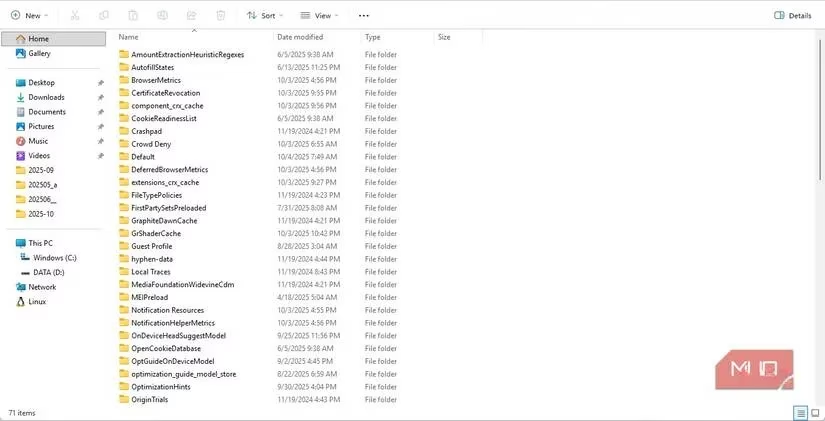
The persistence of this data is alarmingly robust. Common cleanup methods we all rely on are largely ineffective against this local profile:
-
Private/Incognito Browsing 🕵️: These modes only prevent new data from being saved during that session. They do absolutely nothing to touch the treasure trove of credentials already stored in the existing local profile from your previous standard browsing sessions.
-
Clearing History & Cookies 🧹: Browsers typically treat password stores and autofill data as separate, more protected entities. Deleting your browsing history and cookies often leaves your saved logins completely untouched.
-
Uninstalling the Browser 🗑️: This might be the biggest surprise. A standard uninstall process frequently leaves the user profile directory intact on the disk. When the browser is reinstalled, it can simply reconnect to that old profile folder, rendering your uninstall effort completely useless for protecting your old data.
Even if you or a conscientious admin deletes the profile, the threat may not be fully eradicated. Modern operating systems have features like system restore points, File History, or Time Machine backups. These systems are designed for recovery, and they don't discriminate—they can preserve copies of your browser profile folder, including its encrypted password stores. This means your credentials could persist in shadow copies on the system long after the primary profile is gone, vulnerable to recovery by malware or a determined individual if the computer is sold, recycled, or improperly decommissioned.
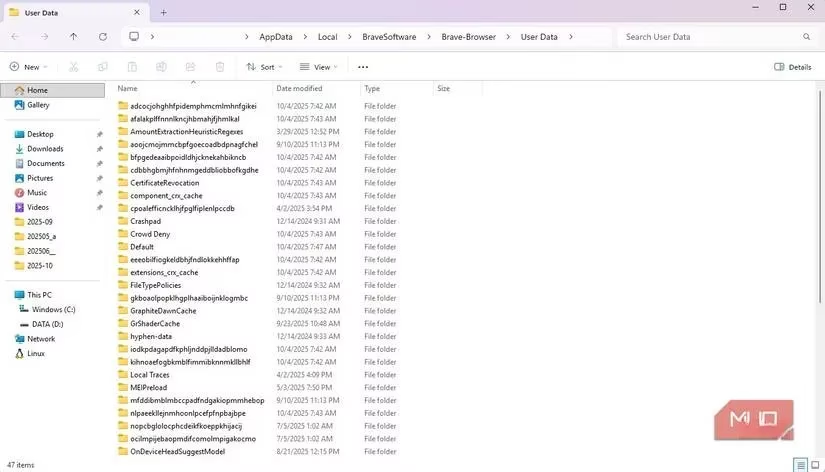
The risks escalate dramatically in certain environments. In a workplace, a single shared computer at a reception desk or in a break room could accumulate profiles from multiple employees over time. A casual session could expose not just one person's cached logins but potentially those of colleagues and even administrators, creating a cascading security failure. Furthermore, the presence of credential-stealing malware specifically designed to harvest data from these well-known browser profile locations turns a convenience feature into a systemic vulnerability.
So, what can we actually do to protect ourselves? After my own scare, I've adopted a multi-layered approach for any time I must use a computer I don't own and control:
-
The Golden Rule: Avoid Syncing Sensitive Data. If I must use a shared browser, I immediately go into the sync settings and disable synchronization for Passwords and Payment Methods/Autofill. This is the single most effective step.
-
Use a Dedicated Password Manager. I've moved entirely away from browser-based password vaults for my critical accounts. Using a dedicated, offline-first password manager means my credentials are never stored in the browser's local profile to begin with.
-
Manually Delete the Profile. Signing out is not enough. If possible, I navigate to the browser's settings and find the option to remove the local user profile itself. On Windows, this often means delving into
%LocalAppData%to find and delete the browser's profile folder (e.g., for Chrome, it's in...\Google\Chrome\User Data). -
Embrace Portable Apps. For my most sensitive work, I've incorporated portable applications into my toolkit. A portable browser run directly from a USB drive stores all its cache, history, and potential passwords on the removable drive itself. When I unplug the drive, I take my entire browsing session with me, leaving virtually no trace on the host computer.
-
Practice Safe Disposal. This advice extends to our own devices. When it's time to retire an old laptop or PC, a simple format is insufficient. I now ensure any drive is securely wiped using software that overwrites the data multiple times, making recovery of old browser profiles—or any data—effectively impossible.
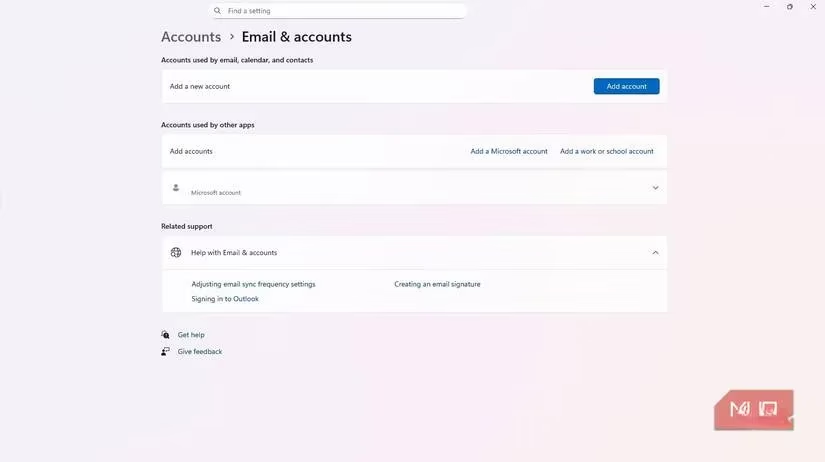
The convenience of modern browsers is a double-edged sword. What saves us time can also create lasting vulnerabilities. My experience taught me that digital hygiene requires active, informed steps beyond the obvious. It's not just about logging out; it's about understanding what you leave behind and taking deliberate action to clean it up. In 2026, as our digital and physical lives become even more intertwined, assuming that a simple logout protects you is a dangerous gamble. The responsibility lies with us to ensure our private keys don't get copied and left in the lock.