
Hey everyone, I want to share something that completely changed my approach to online security. For years, just like probably most of you, I let my browser remember every single one of my passwords. It was the epitome of convenience: log in once, click that "Save password" prompt that pops up like clockwork, and boom—never have to think about it again. It syncs across my phone, laptop, and tablet seamlessly. From a pure ease-of-use standpoint, it felt perfect. But here I am in 2026, telling you that I was wrong, and that convenience came at a hidden cost I wasn't fully aware of. Browser password managers are designed to be frictionless, not fortress-like, and understanding that distinction is crucial for protecting your digital life.
The Illusion of Safety in Your Browser
Let's be honest, the reason browser password managers are so ubiquitous is because they're aggressively convenient. Every major browser—Chrome, Firefox, Safari, Edge—pushes that save prompt at you relentlessly. It feels like the safe, integrated choice because it's baked right into your primary internet portal. And yes, it's completely free and works instantly. For a long time, I told myself, "It's from Google/Apple/Microsoft, how bad can it be?" That was my first mistake. I was conflating a massive tech company's reputation with a specific product's security design. The core issue is that browsers were engineered for browsing the web, not for being impregnable vaults for your most sensitive secrets. Their primary goal is speed and user experience; security, while important, is often a secondary consideration in this specific feature.

How Browser Storage Really Works (And Why It's Flawed)
This was the real wake-up call for me. The architectural foundation of a browser's password storage is fundamentally different from a dedicated password manager. Here’s the breakdown:
-
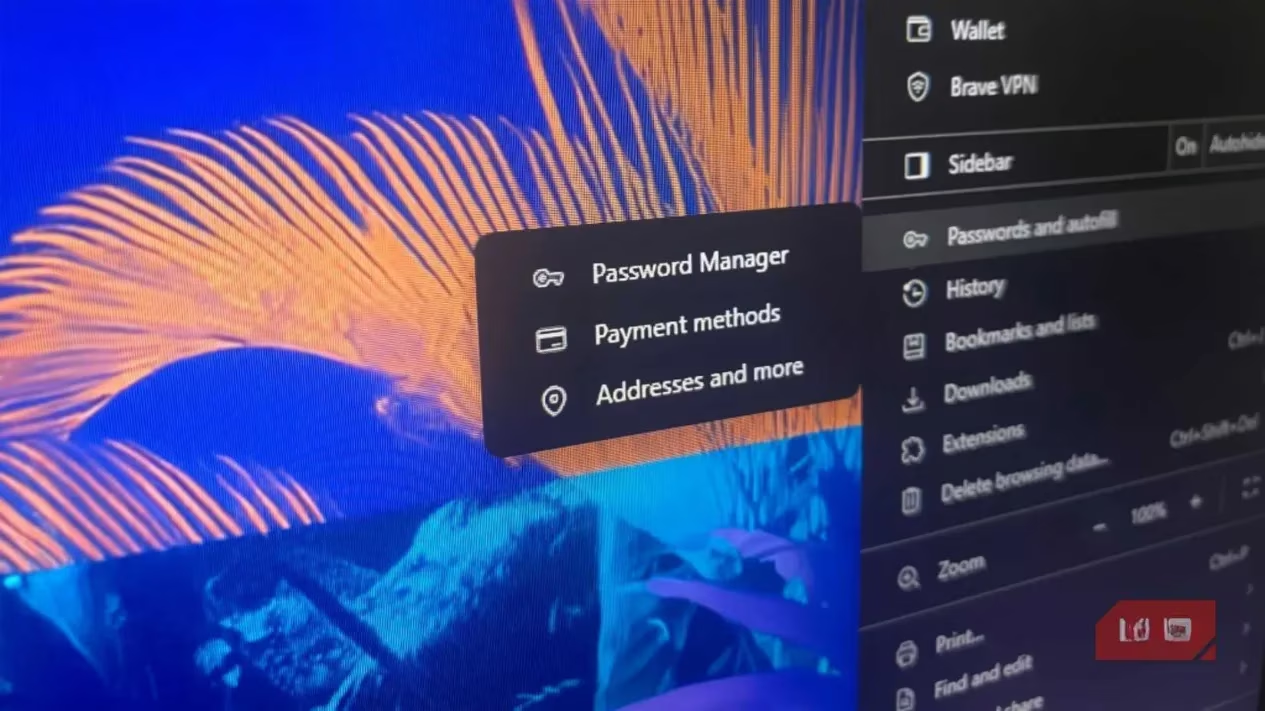
Storage Method: Your browser typically stores your passwords in a database within your browser profile folder on your device. While this data is often encrypted, the level and implementation of that encryption vary and aren't always as robust as you'd hope.
-
The Sync Risk: When your passwords sync across devices (that handy feature we all love), they are often encrypted by the service provider (like Google) for transmission and storage on their servers. This means, in some models, the provider holds the keys. A dedicated manager, in contrast, uses a zero-knowledge architecture. Your data is encrypted and decrypted only on your devices with a master password only you know. The service provider cannot access or read your vault—ever.
-
Lack of Advanced Features: Browsers are catching up, but they generally lack the sophisticated security tools of dedicated managers: secure password sharing, advanced breach monitoring that goes beyond basic alerts, detailed password health reports, and secure storage for other sensitive data like credit cards, IDs, and secure notes.
If You Absolutely Must Use a Browser Manager...
I get it. Switching systems can feel daunting. Maybe you're not ready to make the jump yet. If you're going to persist with your browser's manager, you must take these extra precautions to mitigate the risk. Think of this as digital damage control:
-
🔒 Enable Two-Factor Authentication (2FA) Everywhere: This is non-negotiable. If a password is stolen, 2FA is your last line of defense. Use an authenticator app (like Authy or Google Authenticator) or a hardware key, not SMS, for the strongest protection.
-
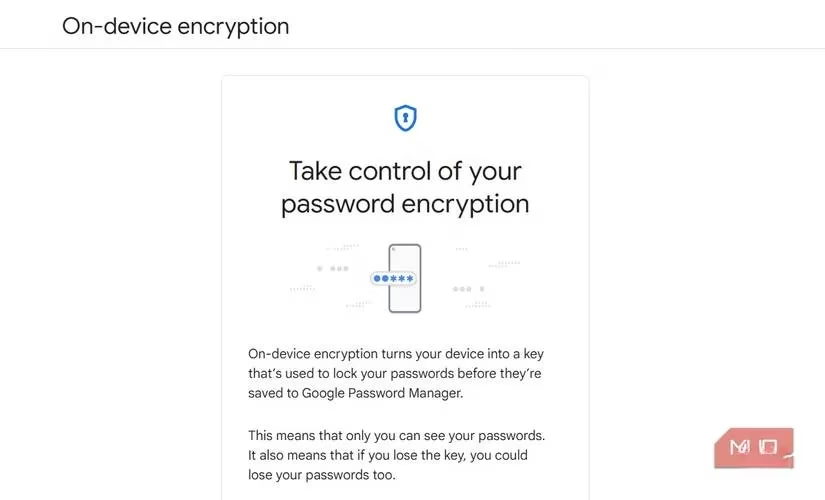
🔐 Activate On-Device Encryption: Some browsers, like Chrome, offer this setting. It ensures your credentials are encrypted and decrypted locally on your device before any syncing happens. It's a critical setting to find and turn on.
-
📱 Fortify Your Devices: Any device with access to your passwords needs maximum protection. Use strong, unique device passwords, enable biometric locks (fingerprint, face ID), and don't leave devices unattended and unlocked.
-
🤔 Be Selective About What You Save: Not all passwords are created equal. Your social media login is different from your online banking password. Consider not saving your most critical financial, email, or work passwords in the browser at all. Memorize them or use a different method for those few crucial keys.
-
🕵️♂️ Audit Your Saved Passwords Regularly: Use the browser's built-in password checkup tool (most have them now) to scan for reused, weak, or compromised passwords. Make this a quarterly habit.
These steps create layers of defense, but remember, they're strengthening a system with inherent weaknesses. They're a temporary patch, not a permanent solution.
Making the Switch: It's Easier Than You Think
The biggest mental hurdle is the migration process itself. We fear it will be time-consuming, technical, and risky. What if I lose all my passwords? I had the same fears, but let me tell you, the process in 2026 is streamlined and surprisingly simple. Here’s a general guide that works for most browsers:
-
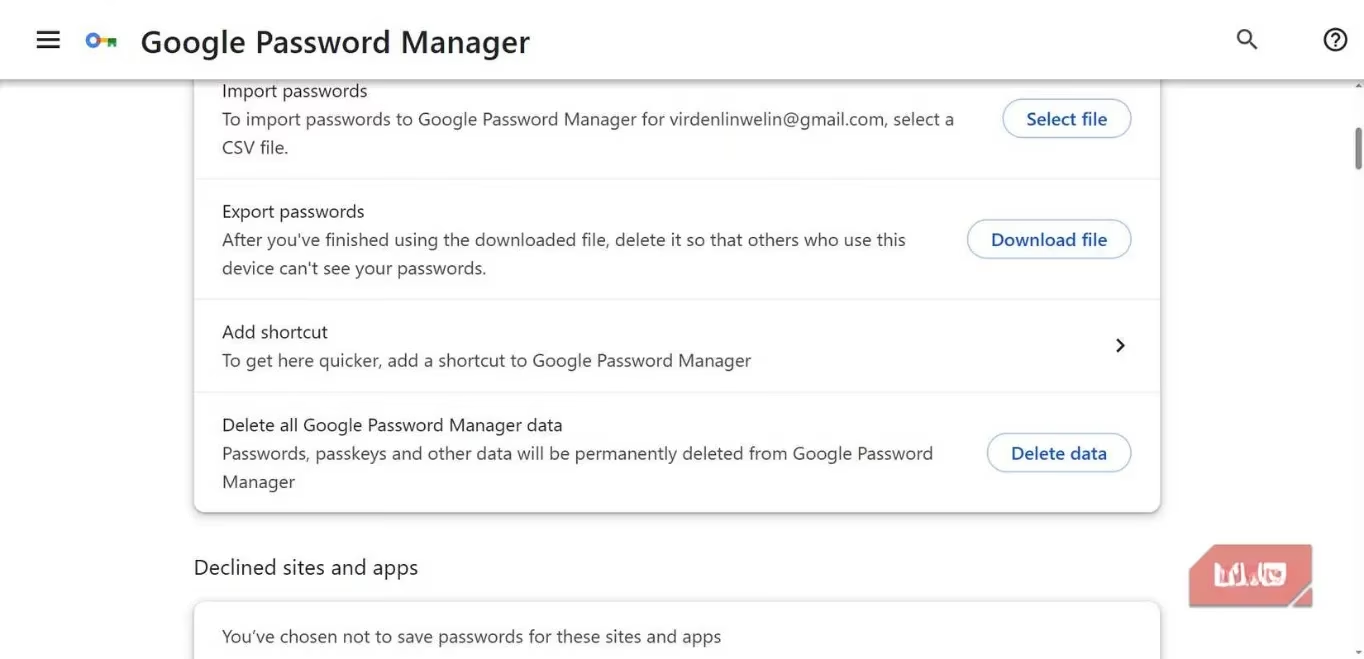
Export Your Passwords: Browsers make it easy to export your saved logins into a common file format (usually a .CSV file).
-
In Chrome, you'd go to
chrome://password-manager> Settings > Export passwords. -
You'll verify your identity (with your computer login), and save the file to your desktop.
-
-
Choose Your Dedicated Manager: This is the fun part. Do some research! My personal recommendation, and one highly rated by security experts, is Bitwarden. It's open-source, offers a fantastic free tier, and has all the premium features you'd want. Other great options include 1Password and NordPass. Pick one that fits your workflow.
-
Import and Secure: Within your new password manager, find the "Import" function, select the CSV file you exported, and watch as all your logins populate your new, secure vault. Then, you'll create one, incredibly strong master password. This is the only password you'll need to remember from now on. Make it a long, unique passphrase.
-
Disable the Browser's Saver: Finally, go into your browser settings and turn off the "Offer to save passwords" feature. Your new manager will now handle all those prompts.
The Peace of Mind is Worth It
Looking back, the hour or so I spent making the switch was one of the best investments I've made in my digital well-being. A dedicated password manager isn't just about storage; it's about control, oversight, and robust security. It provides:
-
True Zero-Knowledge Encryption: You hold the only key.
-
Cross-Platform Consistency: A unified, secure experience on every device and browser.
-
Proactive Security Tools: Advanced breach monitoring, password health scoring, and secure sharing.
-
A Single Source of Truth: For passwords, notes, identities, and payment cards.
Your browser is an amazing tool for exploring the web, but it's a mediocre safe for your keys. In 2026, with cyber threats more sophisticated than ever, trusting it with your digital crown jewels is a risk you don't need to take. Making the switch to a dedicated password manager is a clear, actionable step toward taking back control of your online security. Trust me, your future self—with all your accounts intact and secure—will be grateful you did.