
Let's be real, for most of us, the Edge browser has become a digital circus tent, with work tabs, social media feeds, and endless shopping sites all performing a chaotic juggling act for our attention. It's like trying to concentrate in the middle of a noisy marketplace where every stall is screaming your name. But what if you could transform that chaotic tent into a serene, focused library? The good news is, you absolutely can, and you don't need to clutter your browser with a single extension to do it. By 2026, mastering your browser's native features has become the non-negotiable first step for anyone serious about digital well-being and getting stuff done.
🎯 Step 1: Create Separate Profiles – Your Digital Workspaces
Using one browser profile for everything is like trying to cook a gourmet meal, do your taxes, and watch a movie all on the same kitchen counter. It's a recipe for a messy, distracted mind. The single most powerful productivity hack in Edge is creating separate profiles.
How to Set It Up:
-
Click your profile icon in the top-right corner.
-
Select "Set up a new personal profile."
-
Choose to sign in (for sync) or continue without.
-
Name it something obvious like "Work" and pick a distinct theme color (e.g., professional blue for work, vibrant green for personal).
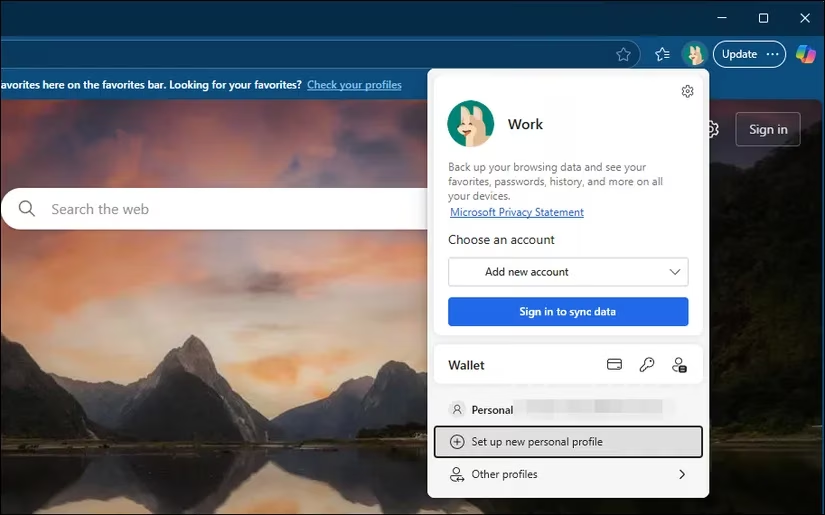
Why It's a Game-Changer:
-
Compartmentalization: Each profile has its own history, cookies, passwords, and extensions. Your work profile won't auto-complete your favorite gaming site.
-
Mental Triggers: Opening your "Work" profile signals to your brain that it's time to focus, creating a psychological boundary as clear as walking into a different room.
-
Reduced Temptation: Your personal social media accounts aren't even logged in there, removing the friction of distraction.
🚫 Step 2: Slay the Distraction Dragon – The New Tab Page
The default Edge new tab page, with its algorithmically curated news feed, is a siren song designed to shipwreck your productivity. One click on a celebrity gossip headline can lead you down a rabbit hole deeper than a black hole's event horizon.
How to Tame It:
-
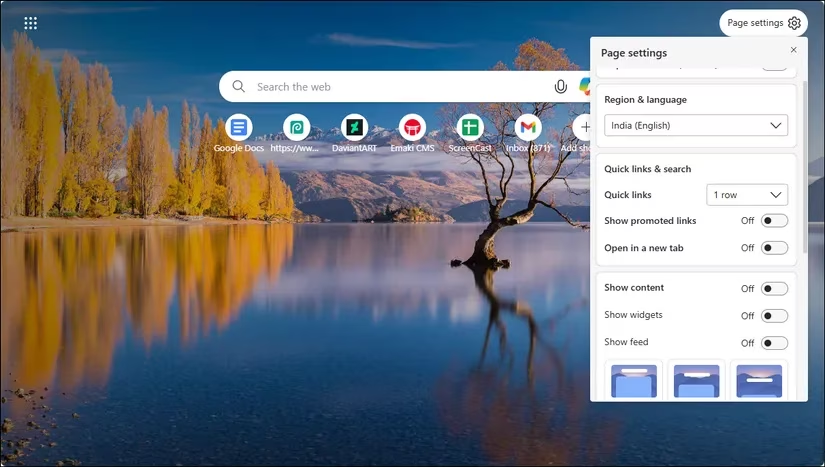
Open a new tab and click the gear icon (Page settings) in the top-right.
-
Scroll down and toggle "Show feed" to OFF.
-
While you're there, audit your Quick Links. Remove any distracting sites (YouTube, X, Instagram) by clicking the three-dot menu next to them and selecting "Remove."
🔕 Step 3: Silence the Digital Beggars – Notifications
Website notifications are the digital equivalent of someone constantly tapping you on the shoulder while you're trying to read. Each pop-up is a potential 20-minute distraction in disguise, shattering your precious flow state.
How to Build a Moat:
-
Click the three-dot menu > Settings.
-
Go to Privacy, search, and services > Site permissions.
-
Click "All permissions" and select "Notifications."
-
Toggle "Ask before sending" to OFF. This blocks all new requests automatically.
Pro-Tip: If you need notifications from critical work tools like Slack or Microsoft Teams, you can add exceptions here. But be ruthless! Treat every allowed notification like a guest in your mental workspace—only the most essential ones get an invite.
📖 Step 4: Enter the Zen Garden – Immersive Reader
Even legitimate research websites are cluttered with sidebars, pop-ups, and auto-playing videos. Immersive Reader is your secret weapon to strip all that away, transforming a noisy webpage into a clean, focused document—like putting noise-canceling headphones on your eyes.
How to Activate It:
When available on a page (like most articles), a small book icon appears in the address bar. Click it or simply press F9 on your keyboard.
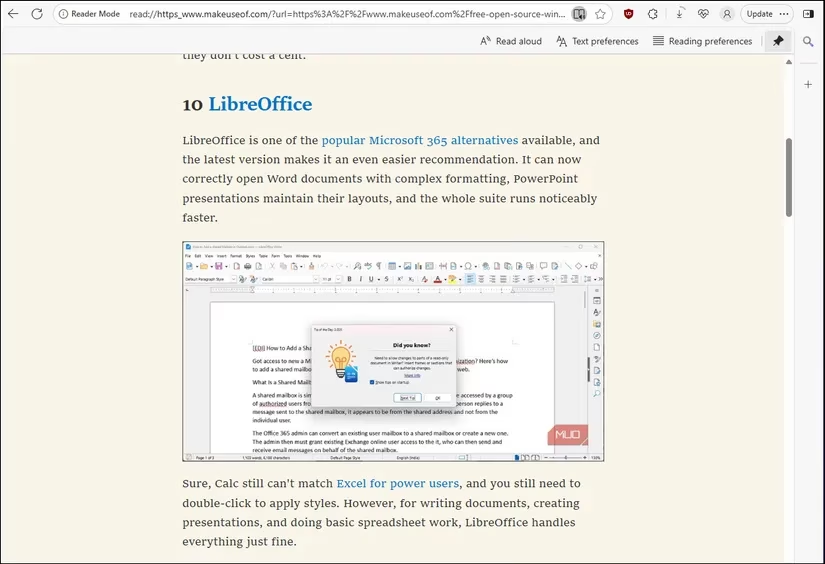
Superpowers of Immersive Reader:
-
Customizable Reading: Adjust text size, spacing, and themes (light/dark).
-
Focus Tools: Highlight parts of speech or break words into syllables for deep study.
-
Read Aloud: Let Edge read articles to you while you take notes—adjust speed and voice to avoid fatigue.
⛔ Step 5: The Nuclear Option – Block Sites at the System Level
Muscle memory is a powerful foe. During a boring task, your fingers might automatically type twitter.com or reddit.com. Browser blockers are too easy to disable. You need a stronger, more inconvenient barrier.
The solution? Edit your computer's hosts file. This redirects time-wasting sites to a digital dead end, making them inaccessible.
How to Do It (For Windows):
-
Search for Notepad, right-click it, and select "Run as administrator."
-
In Notepad, click File > Open.
-
Navigate to
C:\Windows\System32\drivers\etc\. -
Change the file type dropdown to "All Files (*.*)".
-
Select the
hostsfile and open it. -
At the bottom of the file, add lines for each site you want to block:
```
127.0.0.1 twitter.com
127.0.0.1 www.twitter.com
127.0.0.1 reddit.com
127.0.0.1 www.reddit.com
```
-
Save the file (File > Save).
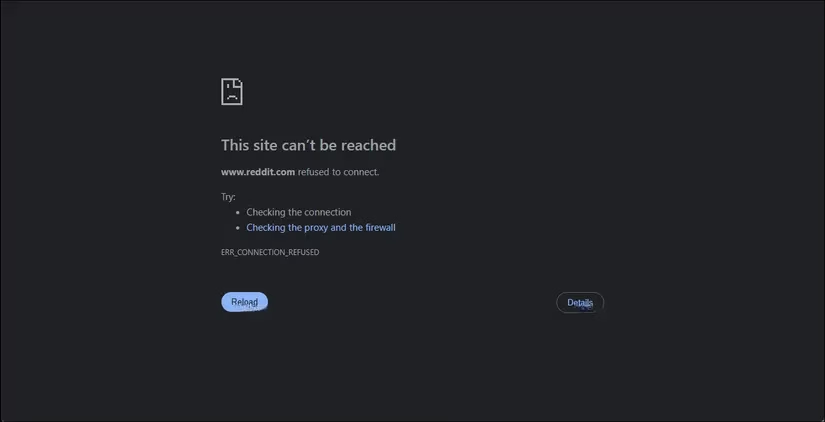
Now, visiting those sites will show a "This site can't be reached" error. It's inconvenient enough to stop casual browsing but easy to reverse if you genuinely need access (just remove the lines and save).
🎉 The Result: Reclaim Your Focus and Time
Implementing these strategies isn't about restriction; it's about liberation. By 2026, the most productive people aren't those with the most willpower, but those who design their digital environment to make focus the default and distraction the exception.
| Before | After |
|---|---|
| 🎪 Chaotic single profile | 🏢 Separate, purpose-built profiles |
| 📰 Distracting news feed | 🧘♂️ Clean, minimalist new tab |
| 🔔 Constant notification pings | 🤫 Peaceful, uninterrupted focus |
| 🕸️ Cluttered, noisy webpages | 📖 Clean, immersive reading experience |
| 🤖 Autopilot to time-wasting sites | ⛔ Intentional, friction-based blocks |
The journey is ongoing, but by making these small, powerful changes, you'll find yourself completing work on time, reducing mental fatigue, and finally being able to enjoy your guilt-free evenings. Your browser should be a tool, not a trap. Go forth and configure! 💪