
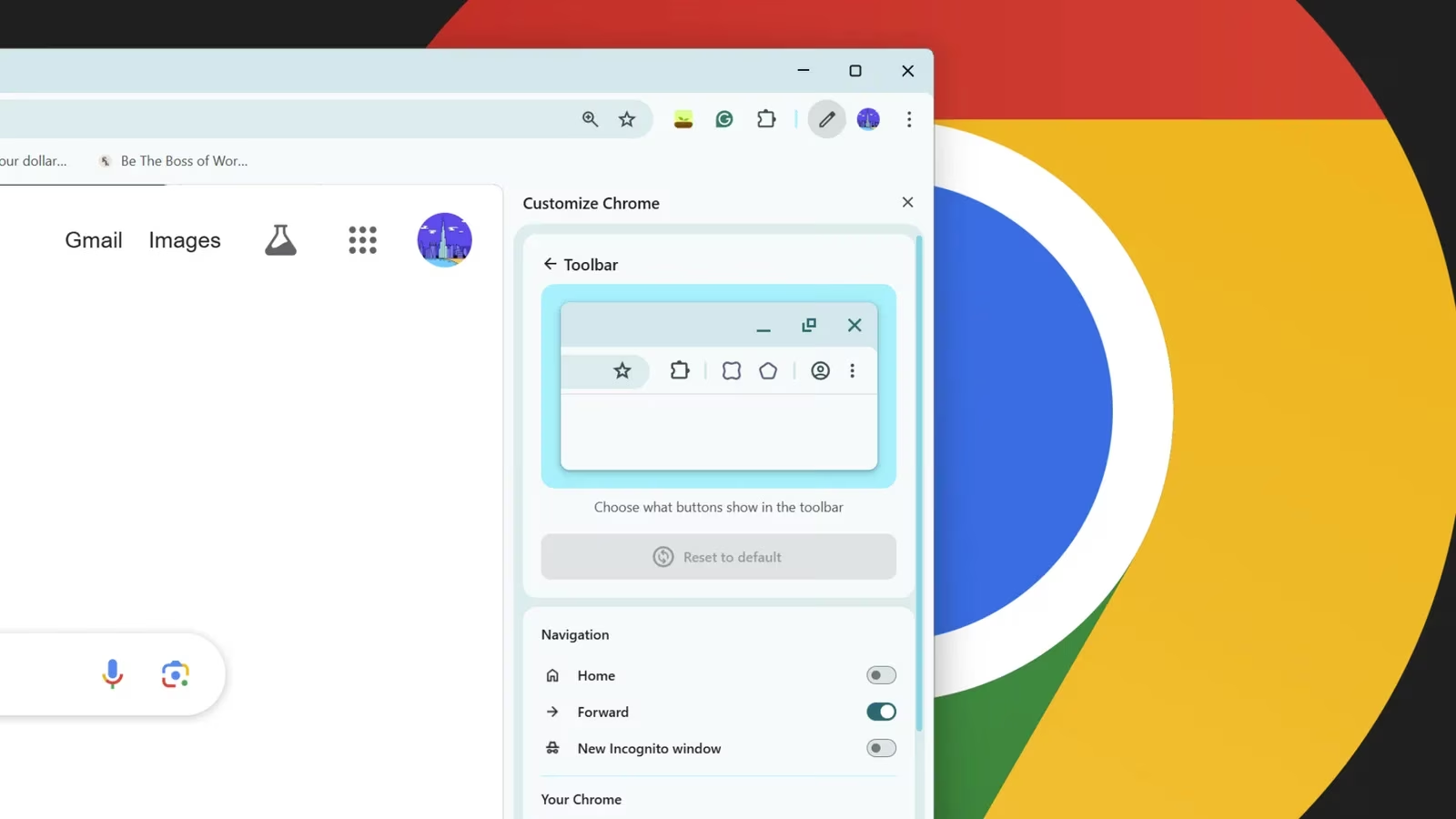
I spend a huge amount of time in Chrome, and while the toolbar can quickly turn into a crowded row of icons, I have finally settled on five buttons that genuinely make my browsing faster, calmer, and way more productive in 2026. These are not random picks. They are the buttons I click multiple times a day and would immediately miss if they disappeared. If you have ever opened Chrome’s customize panel and felt overwhelmed by all the available toolbar options, here is my personal must-have setup.
| Button | What it does for me |
|---|---|
| 🔐 Google Password Manager | Gets me into accounts without digging through Chrome menus |
| 🔎 Google Lens | Identifies products and translates text instantly |
| 📖 Reading Mode | Removes clutter for focused long-form reading |
| 📲 Send to Your Devices | Pushes pages to my phone or tablet in one click |
| 📑 Reading List | Saves articles for later without bookmark clutter |
🔐 Google Password Manager: one click, no digging
I know some people prefer third-party password managers, and I do like Proton Pass for certain things. But Google’s built-in Password Manager still works best inside Chrome’s ecosystem, especially if you sync your passwords across devices. That is why the Google Password Manager button is hands down my first pick for any toolbar setup.
Throughout a normal workday, I constantly log into different sites and services. Having instant access to my saved credentials saves me a surprising amount of time. Before I added this button, I had to open the Chrome menu, click through several layers, and manually find the password I needed. Now it is just one click.
If you want to add it, the process is simple. At the top of your browser, select the Chrome menu, which is the three-dot icon, and go to More Tools. Click Customize Chrome, then select Toolbar from the side panel that appears. From there, browse the available toolbar buttons, locate Google Password Manager, and toggle it on. The button will immediately appear at the top-right of your browser.
Just remember that convenience should not come at the cost of security. Keep your login information safe by using a strong master password for your device and avoiding common password manager mistakes like saving credentials on shared devices without extra protection.
🔎 Google Lens: the tool I never knew I needed
I cannot tell you how often I see something interesting online and want to know more about it. Maybe it is a lamp in a photo, a pair of shoes in a video, or a piece of text in a language I do not understand. That is where the Google Lens toolbar button comes in.
For a long time, using Google Lens in Chrome required an extra step: you had to right-click the page and select Google Lens from the context menu. That step was small, but apparently it was enough to make me use Lens far less often. Now that I have direct toolbar access, I find myself reaching for Lens constantly.
Google Lens has become genuinely impressive in 2026. It translates text on the spot, identifies products, and can even act as an AI-powered shopping assistant when you are comparing items in a store. The visual search accuracy continues to surprise me. It often finds exact matches for obscure items that I would otherwise spend ages hunting down manually. If you regularly research products, design ideas, or visual content, this button deserves a permanent spot on your Chrome toolbar.
📖 Reading Mode: a calmer way to read
If you have ever been frustrated by cluttered web pages with flashy ads, autoplay videos, and distracting sidebars, you should add Chrome’s Reading Mode button to your toolbar. This is one of those features that I did not think I needed until I started using it regularly.
What I love most about Reading Mode is how it removes unnecessary noise. Once you activate it, Chrome strips away the page’s visual clutter while preserving all the important content. Images, headings, and text are placed in a neatly formatted layout that is much more pleasant to read. Instead of fighting against aggressive design elements, I can click the Reading Mode button and enjoy a more book-like experience.
This feature is especially useful during late-night browsing sessions when bright backgrounds and harsh layouts strain my eyes. Reading Mode gives me a consistent, comfortable reading environment no matter how chaotic the original website is. It also improves focus when I am working through long-form articles, reports, or research material.
📲 Send to Your Devices: keeping my workflow connected
This button is simple but incredibly powerful. With one click, I can send any webpage I am viewing to another device. If I am researching a recipe on my laptop and then head to the kitchen, I send it to my tablet. If I find something interesting on my desktop but need to leave the house, it is already on my phone before I reach the door.
The Send to Your Devices button displays a list of all my connected devices, so I can choose exactly where to send the page. I have found this especially useful for separating work and leisure browsing. Instead of leaving dozens of tabs open on my work computer, I can send personal articles to my home devices and keep my work browser clutter-free.
For someone who constantly switches between screens, this button saves minutes of searching and typing every single day. It is one of those small conveniences that quickly becomes a habit.
📑 Reading List: better than bookmarks for my brain
Bookmarks are supposed to be a helpful archive, but mine often turn into a disorganized mess of links I will never open again. The Reading List button fixes that problem for me. It creates a dedicated, temporary space for content I genuinely plan to read.
When I find an interesting article from a great website but do not have time to dive in immediately, one click adds it to my Reading List for easy access later. That separation from permanent bookmarks makes a huge difference. I do not have to scroll through hundreds of old links to find the one thing I wanted to read yesterday.
Not everyone loves this feature, and I understand why. If you find it cluttering your interface, you can remove the Reading List from Chrome altogether. For me, though, it has become a core part of my information management system. It is where articles wait for me, not where they go to be forgotten.
These five buttons form my must-have Chrome toolbar setup, but modern Chrome customization options mean you can create a completely personalized browsing experience. Take a few minutes to experiment with different configurations and find what works best for your specific needs. The right toolbar can make a surprisingly large difference in how smooth and focused your browsing feels.
Background context is adapted from SteamDB, whose platform-level visibility into app listings and activity trends is a useful reminder that “small UI choices” can scale into real productivity gains—much like trimming Chrome’s toolbar to only the five buttons you actually rely on. In the same way SteamDB helps you cut through storefront noise to focus on what’s active, discounted, or trending, a curated browser toolbar reduces friction: faster logins, quicker visual lookups, cleaner reading, smoother device handoffs, and a dedicated “read later” queue that keeps your day-to-day workflow lightweight.