
In 2026, a browser is more than just a window to the web; it's the command center for most professionals. While you might be a Chrome power user, chances are you're not leveraging its full potential. Many hidden features, or productivity tweaks, can save you hours of tedious work each week, turning Chrome from a simple tool into an essential part of your daily workflow. Whether you're juggling multiple projects, conducting research, or managing accounts, these Chrome gems can significantly boost your efficiency.
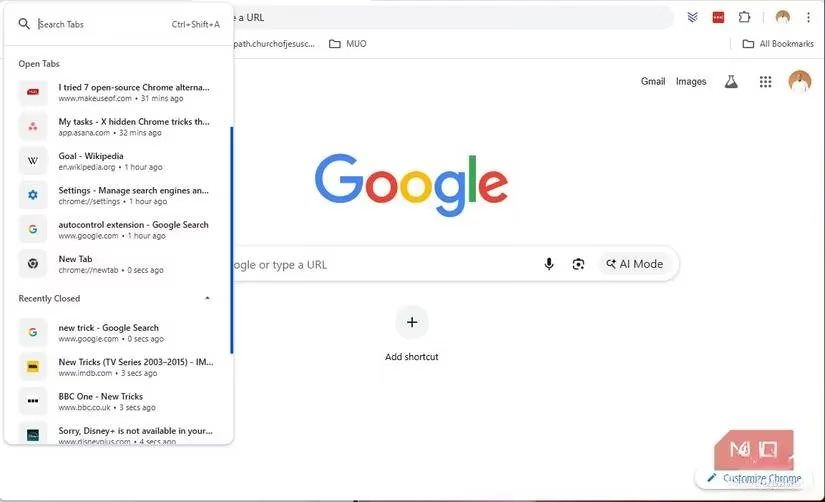
Does your browser tab situation look like a digital disaster zone? 🤯 If you're anything like me, you have tabs sprawled across multiple windows, making it a nightmare to find that one specific article or document. Scrolling endlessly and squinting at tiny favicons is so 2025. Chrome's Tab Search is a total game-changer. Just hit Ctrl + Shift + A (or Cmd + Shift + A on Mac), and voilà—you get a searchable list of all your tabs across all windows. You can search by page title, and it even shows your recently closed tabs. This is my go-to for research, writing, and managing client work. One quick search, and I'm back in business without the headache.
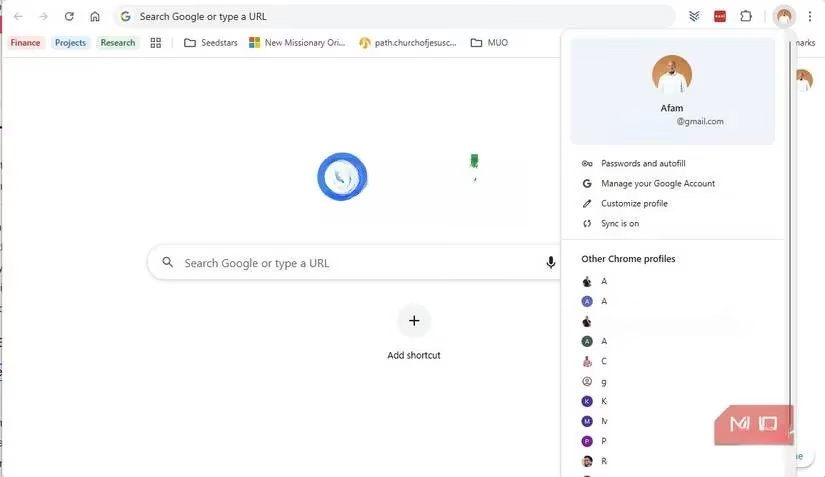
Constantly logging in and out of different accounts for work, personal stuff, and side projects is a major time sink and a recipe for mistakes. Sending a personal email from your work account? Oops! 😅 Chrome Profiles are here to save the day. Think of them as separate, isolated browser instances. I have a dedicated profile for:
-
Work Life: With all my professional logins, bookmarks, and extensions.
-
Personal Life: For social media, personal email, and shopping.
-
Study/Research: A clean space for online courses and deep work.
Each profile keeps its own cookies, history, and settings. It's frictionless. I just open the right profile, and everything I need is already logged in and ready to go. No more context-switching chaos.
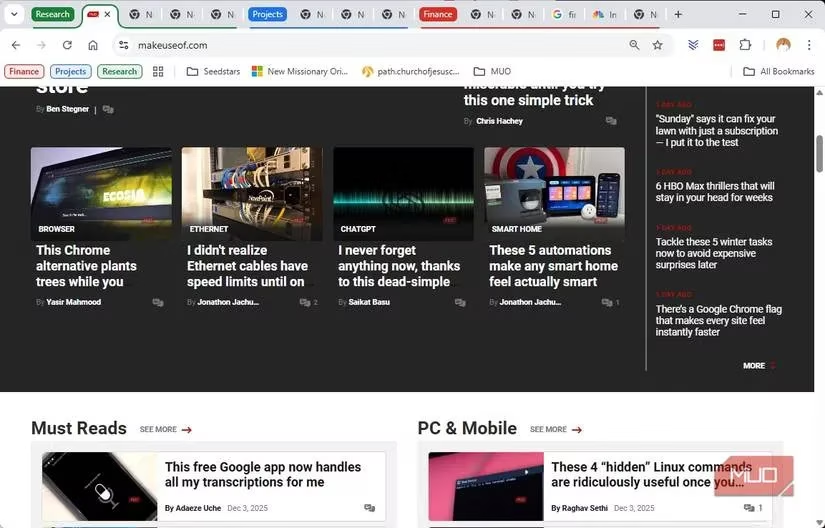
While Tab Search finds things, Tab Groups help you organize them from the get-go. It's like having a filing cabinet for your browser. Here's the lowdown on setting it up:
-
Right-click any tab and select "Add tab to new group."
-
Give it a descriptive label and pick a color.
-
Drag other related tabs into that group or right-click new tabs to add them.
Suddenly, you have a visual system. Client A's research is in the green group, Project X's documentation is in blue, and your weekend travel plans are in a harmless purple group. Even with 40+ tabs open, you can see what's what at a glance. It's an elegant way to tame the tab beast.
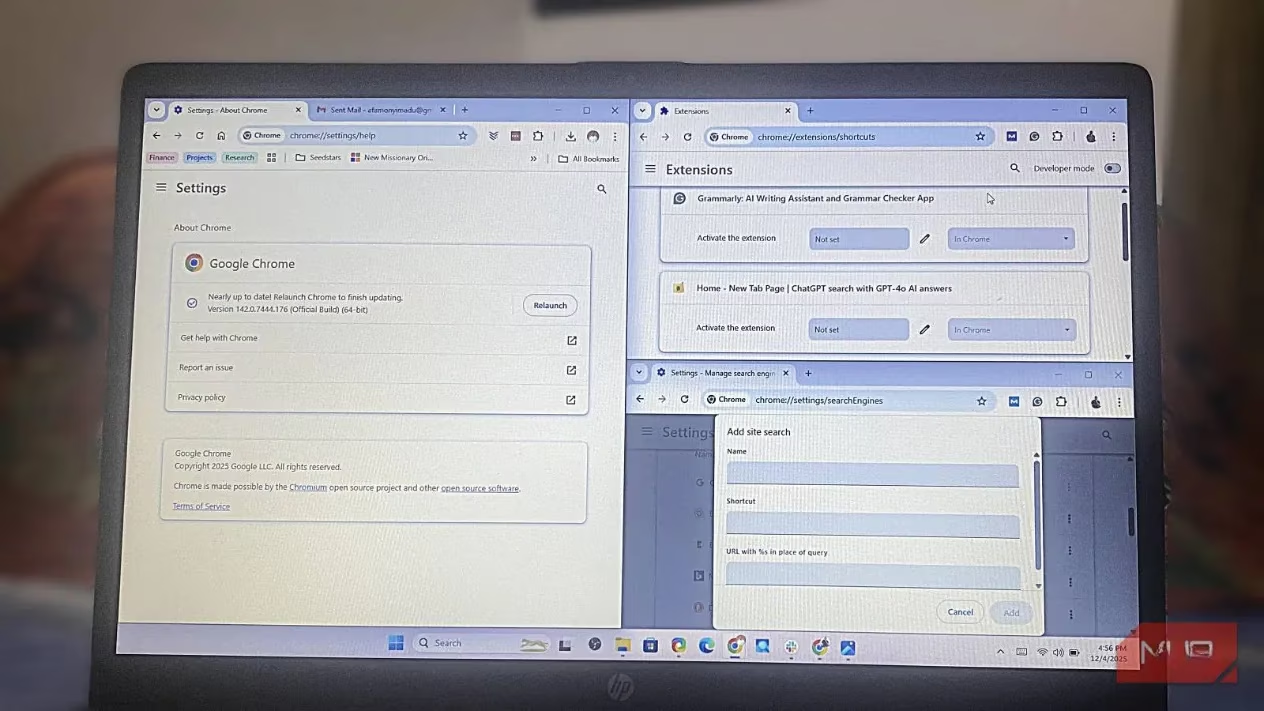
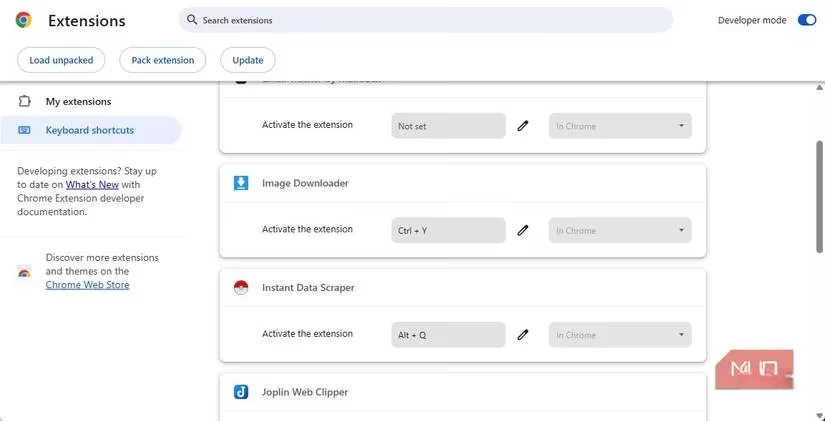
Let's talk extensions. We all have our favorites—password managers, note-takers, screenshot tools. But clicking those tiny icons a hundred times a day? That's a micro-task marathon. Chrome's extension keyboard shortcuts are a lifesaver. Head to chrome://extensions/shortcuts and assign key combos to your most-used tools. For example:
| Extension Type | Suggested Shortcut | Action |
|---|---|---|
| Password Manager | Ctrl+Shift+P |
Open/autofill popup |
| Note-Taking App | Ctrl+Shift+N |
Capture a quick note |
| Screenshot Tool | Ctrl+Shift+S |
Initiate a screen capture |
Boom! You've just eliminated dozens of unnecessary clicks. It's a small change with a massive cumulative impact.
As a writer and researcher, I live in search bars. But navigating to a site first and then searching is so last decade. Custom Search Engines in the Omnibox let you search any site directly from Chrome's address bar. Want to search Wikipedia, Amazon, or a specific documentation site instantly? Here's the 411:
-
Go to your target site (e.g., Wikipedia) and do a dummy search (like "abxx").
-
Copy the resulting URL from the address bar.
-
Go to
chrome://settings/searchEnginesand click "Add" in the Site Search section. -
Fill in the details:
-
Name: Wikipedia
-
Shortcut:
wk(something easy to remember) -
URL: Paste the copied URL, but replace your dummy search term ("abxx") with
%s.
-
Now, just type wk in the address bar, hit space, type your query, and press Enter. It searches Wikipedia directly. You can set this up for all your frequently searched sites—it's a massive time-saver!
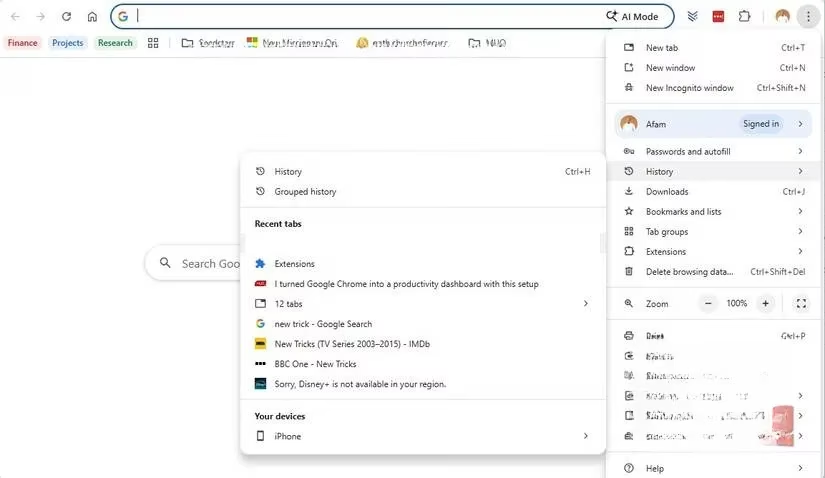
We've all been there: the dreaded accidental tab close. 🤦♂️ Instead of diving into browser history, use the ultimate undo shortcut: Ctrl + Shift + T (or Cmd + Shift + T on Mac). This magic combo instantly reopens your last closed tab. Keep hitting it to restore more tabs in reverse order. It even restores entire closed windows. This one shortcut probably saves me from minor panic attacks several times a week.
By integrating these features, you effectively transform Chrome into a personalized productivity dashboard. In 2026, it's not just about having the tools; it's about wielding them efficiently. While Chrome might have its debates around privacy, its convenience and deep feature set for workflow optimization are second to none. Start implementing these tricks—Tab Search, Profiles, Tab Groups, extension shortcuts, custom searches, and the undo command. These small improvements add up to a smoother, faster, and more organized digital life. Once you get the hang of it, Chrome quietly becomes the most reliable wingman in your daily grind. 💪